How to Make a Gantt Chart Template: A 7-Step Guide [2026]
Project schedules often become confusing before the work even begins. Tasks sit in scattered notes, deadlines shift without warning, and nobody knows which activity should happen next. A blank Gantt chart can feel just as intimidating because you must decide what to include, how to group tasks, and where each timeline bar belongs.
That uncertainty creates real problems. A missed dependency can delay an entire launch, while an overloaded chart can hide the priorities your team needs to see. If the template is difficult to update, people may stop using it after the first planning meeting.
But here's the truth: you do not need a complex design to create a useful Gantt chart template. You need a repeatable structure for tasks, dates, owners, dependencies, milestones, and progress. The seven steps below show you how to build that structure and adapt it to future projects.
How to Make a Gantt Chart Template in 7 Steps
A Gantt chart template is a reusable project schedule that displays tasks across a timeline, showing when work starts, when it ends, who owns it, and how activities connect. You can create one with a project management platform, a visual planning tool, or a simple grid with timeline bars.
The best template gives you enough structure to plan quickly while leaving room for different project types. Follow these seven steps to build one that your team can reuse.
-
Define the project scope and planning horizon
Start by clarifying what the schedule should control. Write down the project outcome, major deliverables, expected start date, target completion date, and planning unit.
For example, a website redesign may run for 12 weeks and include research, content planning, design, development, testing, and launch. A small internal campaign may need only three weeks.
Choose a timeline that matches the project. Use days for short efforts, weeks for product launches, and months for long initiatives. A timeline that is too detailed creates maintenance work without improving decisions.
Set boundaries before adding tasks
Decide what belongs in the schedule and what belongs elsewhere. Include work that affects timing, handoffs, approvals, or delivery. Leave out minor actions that do not change the project plan.
For instance, “review homepage design” belongs in a website schedule. “Open design application” usually does not. This distinction keeps the chart readable.
-
List deliverables and break them into tasks
Next, identify the major results the project must produce. Then divide each result into practical tasks that one person or team can complete.
Suppose your deliverable is “launch an online course.” Suitable task groups may include:
- Confirm course objectives
- Outline lessons
- Write lesson content
- Record demonstrations
- Edit recordings
- Build the course pages
- Run learner testing
- Publish the course
Each task should describe an action with a visible outcome. “Marketing” is too broad for a useful schedule. “Approve launch email” gives the team a clear responsibility and completion point.
Choose the right task size
A task that takes several months may hide risks. A task that takes 10 minutes may create unnecessary detail. Aim for work units that can be estimated, assigned, and reviewed.
As a practical starting point, many teams use tasks lasting between one day and two weeks. Adjust that range when the project requires shorter review cycles or longer technical work.
-
Organize tasks into phases and workstreams
Place related tasks under clear phases, such as planning, design, implementation, testing, and release. You can also group them by workstream, team, product area, or location.
For a mobile app release, your groups might include product, engineering, design, quality assurance, and marketing. For a construction project, groups may include permits, site preparation, materials, installation, inspection, and handover.
Use consistent naming. If one phase uses verbs and another uses department names, the chart becomes harder to scan.
Use hierarchy carefully
Most templates work well with three levels:
- Project or program
- Phase or workstream
- Task or milestone
Subtasks can help when a phase contains several distinct activities. However, too many nested levels make the schedule feel like a checklist rather than a planning tool.
-
Add durations, start dates, and finish dates
Estimate how long each task will take and place it on the timeline. Give every meaningful task a planned start date and finish date.
Use working time rather than optimistic calendar time. If a task needs three business days, account for weekends, holidays, review windows, and the availability of the person assigned to it.
For example, a two-day design review may require five calendar days when the reviewer has other commitments. A realistic template makes those constraints visible early.
Separate effort from elapsed time
Effort describes the amount of active work. Elapsed time describes how long the task occupies the schedule. They may differ.
A specialist might need four hours of effort spread across two days because the task depends on a meeting or approval. Record the timeline the project actually needs rather than the effort alone.
-
Map dependencies between tasks
Dependencies show which activities must happen before others can begin. They turn a list of tasks into a working project sequence.
For example, a product page cannot receive final approval until its copy and visual design are complete. A testing cycle cannot begin until a usable build is available.
Common dependency relationships include:
- Finish-to-start: one task ends before another begins
- Start-to-start: two tasks begin together or within a planned window
- Finish-to-finish: two tasks should finish around the same time
- Lag: a deliberate waiting period separates two activities
Highlight the dependency chain
Some task sequences directly affect the final completion date. A delay in one activity may move every following activity.
Mark these linked activities clearly with connectors, labels, or a visual style. Your team can then focus attention on schedule risks rather than treating every task as equally urgent.
-
Add owners, milestones, and progress fields
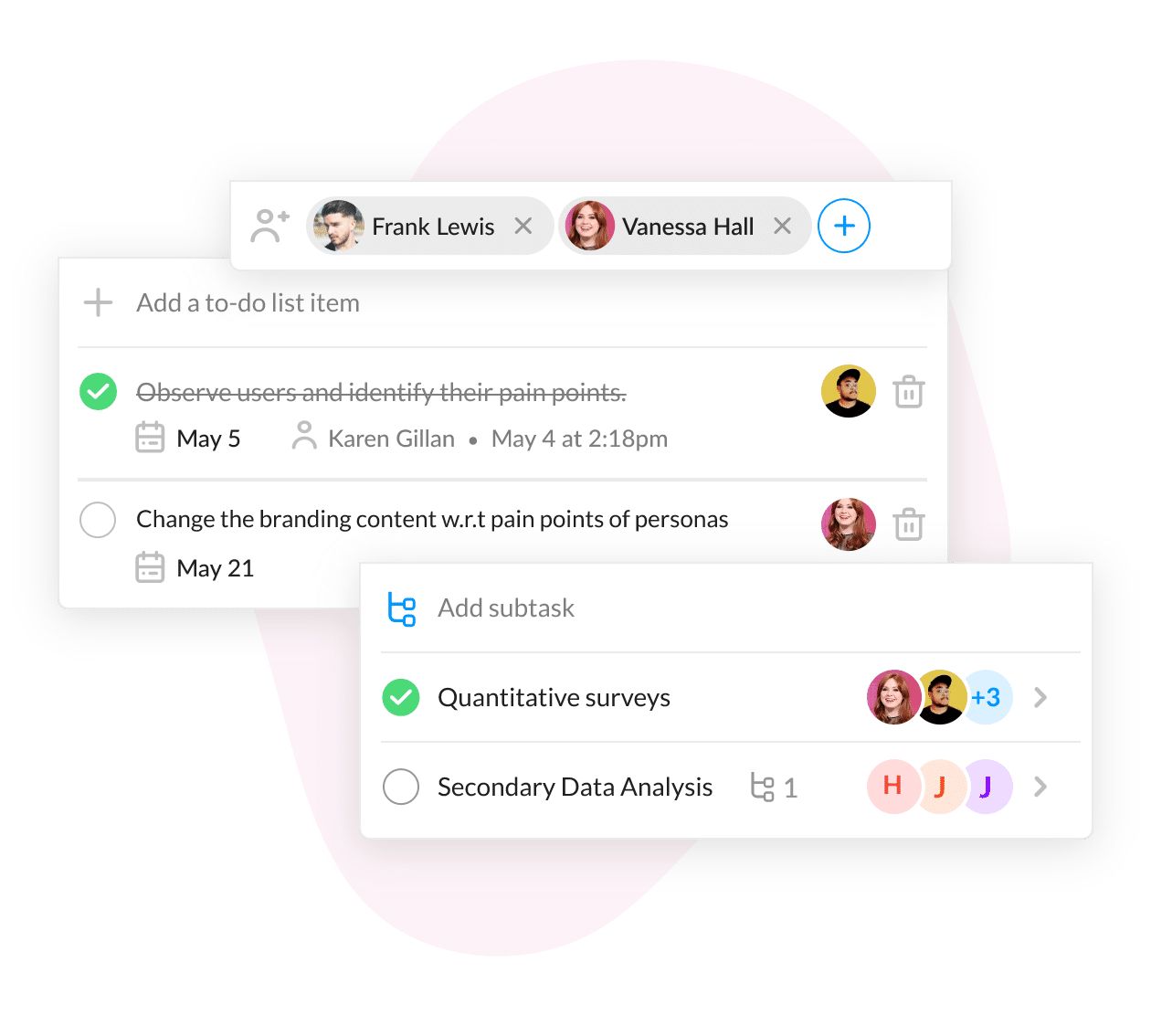
A schedule becomes actionable when each task has an owner. Assign responsibility to a person, team, or role that can coordinate completion.
Include milestones for important checkpoints. Examples include “requirements approved,” “prototype accepted,” “testing complete,” and “launch ready.” Milestones usually have zero duration, but they create useful decision points.
Useful fields for a reusable template include:
- Task name
- Phase
- Owner
- Start date
- Finish date
- Duration
- Dependency
- Status
- Progress percentage
- Risk or note
Keep status choices consistent
Use a small set of clear statuses, such as planned, in progress, blocked, complete, and canceled. Avoid creating a different status for every situation.
Progress percentages should reflect meaningful completion. If a task has five equal activities and two are finished, 40% may be reasonable. If one unfinished activity controls approval, the percentage may need a more cautious interpretation.
-
Format the timeline for quick decisions
Now turn the schedule into a visual planning tool. Display tasks as horizontal bars across the timeline. Use colors, labels, or grouping to distinguish phases, owners, milestones, and risks.
Keep the visual system simple. One color can represent each phase, while a separate color highlights blocked work. Milestones can use diamonds or another distinct marker.
The chart should answer three questions quickly:
- What is happening now?
- What must happen next?
- Which delay could affect the final deadline?
Create a reusable layout
Place the task list on the left and the time scale on the right. Keep the most important fields visible without forcing readers to search across a crowded view.
Add a small legend that explains colors, symbols, and status labels. A new teammate should understand the layout without attending a separate training session.
What to Include in a Reusable Schedule
A strong template balances consistency with flexibility. Every project should inherit the same core fields, while optional sections can support specialized work.
For example, a software team may need sprint, environment, and release fields. An events team may need venue, supplier, and approval fields. The underlying timeline remains familiar even when the details change.
| Template element | Why it matters |
|---|---|
| Task hierarchy | Shows how individual activities contribute to larger deliverables. |
| Timeline scale | Matches the level of detail to the project duration. |
| Owners | Creates clear responsibility for each activity. |
| Dependencies | Reveals sequencing constraints and potential delays. |
| Milestones | Marks approvals, handoffs, and major decisions. |
| Status and progress | Helps you compare planned work with actual movement. |
| Risk notes | Provides context when a task needs attention. |
Here's why: people rarely struggle because a chart lacks decoration. They struggle because key planning details are missing or inconsistent.
If every task has a date but no owner, accountability is unclear. If every task has an owner but no dependency, sequence risks remain hidden. A useful template connects these details.
How to Adapt the Template for Different Projects
The same basic structure can support many project types. You only need to adjust the grouping, timeline scale, and fields.
Product development
Group work into discovery, planning, design, engineering, testing, release, and post-launch review. Add fields for sprint, feature area, priority, and release version.
A dependency might connect “approve interaction design” to “begin front-end development.” This helps the team see why a design delay affects engineering capacity.
Marketing campaigns
Organize activities by campaign stage, channel, or asset type. Include copy approval, creative review, legal review, publishing, and performance monitoring.
For a campaign launching on June 15, place the final approval milestone several days earlier. That buffer gives you time to respond to revisions.
Events and conferences
Use phases such as venue, speakers, promotion, registration, logistics, event day, and follow-up. Add owners for vendors, speakers, communications, and operations.
The chart can show that printed materials depend on final speaker information, while attendee reminders depend on registration details.
Construction and physical delivery
Track permits, procurement, site preparation, installation, inspection, and handover. Include waiting periods where work cannot proceed until an inspection or delivery occurs.
In this situation, a timeline bar should reflect real-world constraints. A material order may take one day to place but three weeks to arrive.
You might be wondering: should every project use the same template? Use the same foundation, then tailor the fields and phases. A product launch and an office renovation need different details, yet both benefit from owners, dates, dependencies, and milestones.
How to Keep a Gantt Chart Accurate
Creating the first version is only the beginning. A chart stays useful when your team updates it during regular planning and review moments.
Set a maintenance rhythm
Review active tasks at least once a week. During the review, compare planned dates with actual progress, identify blocked work, and revise upcoming activities.
For a high-change project, review the schedule several times each week. For a stable project, a weekly review may be enough.
Record meaningful changes
When a deadline moves, explain why. A short note such as “waiting for security approval” gives future reviewers useful context.
Without context, a revised date can look like poor planning. With context, your team can identify recurring approval delays or capacity constraints.
Protect the critical path
Review the longest chain of dependent activities before adjusting less important work. If testing controls the launch date, adding effort to an unrelated task will not solve the real problem.
The best part? A clear template makes these conversations easier because the schedule shows relationships visually.
Common Gantt Chart Mistakes to Avoid
A chart can look polished and still fail as a planning tool. Watch for these common problems when you build and reuse your template.
Adding too much detail
Listing every tiny action makes the chart difficult to read. Use a task when its timing, ownership, or dependency matters to the project.
Ignoring review and approval time
Teams often schedule creation work while forgetting the time required for feedback. Add explicit review tasks and approval milestones.
Using dates without dependencies
Dates show when work is expected. Dependencies explain why that timing exists. Without both, a schedule may appear precise while remaining fragile.
Leaving ownership unclear
“The design team” may be enough for a broad phase, but a key approval needs a clear owner. Assign responsibility at the level required for action.
Treating the plan as permanent
A project schedule is a working model. Revise it when priorities, constraints, or assumptions change. The goal is useful visibility, not the appearance of perfect prediction.
A Practical Gantt Chart Solution: ONES.com

Value Proposition
ONES.com combines project management and knowledge management in one platform, with ONES Project providing project planning and delivery capabilities. It can help you turn a reusable schedule into an active workflow instead of maintaining a static planning view.
ONES Project supports Jira-compatible workflows, reporting, custom fields, sprint management, and automation. It is available through Cloud, On-Premise, Private Cloud, and Air-gapped deployments.
Core Capabilities
- Scattered planning details → structured project spaces: Organize phases, tasks, owners, dates, and milestones in a shared project workspace. Your team can coordinate planning without relying on separate planning locations.
- Complex task relationships → custom workflows: Configure statuses and approval paths for your process. This helps the schedule reflect how work actually moves through planning, review, execution, and completion.
- Unclear timing → built-in reporting: Use reporting views to examine progress, workload, and schedule movement. Leaders can identify delays without manually reconstructing project status.
- Changing requirements → custom fields: Add fields for release, risk, priority, sprint, department, or approval stage. You can adapt the template while preserving its core structure.
- Repeated manual updates → automation: Automate selected workflow actions and notifications. This reduces routine coordination when a task changes status or reaches a defined stage.
- Agile planning needs → sprint management: Plan sprint work alongside broader milestones and release goals. This connects short delivery cycles with the wider timeline.
- Jira migration concerns → Jira-compatible workflows: Teams familiar with Jira-style processes can continue using comparable workflow concepts while evaluating another project management environment.
- Deployment restrictions → flexible deployment options: Choose Cloud, On-Premise, Private Cloud, or Air-gapped deployment according to your security and infrastructure requirements.
- Plugin dependence → native feature coverage: Use built-in planning, reporting, workflow, field, sprint, and automation capabilities. Native coverage can reduce the number of additional plugins your team must maintain.
Application Scenarios
Software release planning: A product team can group work by discovery, design, development, testing, and release. Sprint details can sit alongside milestone dates, while dependencies connect design approvals to implementation.
Restricted-network project delivery: A team working in an air-gapped environment can use a self-hosted deployment for project coordination. The same feature parity across cloud and self-hosted versions supports consistent planning practices.
Cross-functional launch management: Marketing, product, engineering, and operations can work in connected project spaces. Custom fields can identify launch channels, owners, risk levels, and approval stages.
ONES.com offers a free plan for up to 30 seats. ONES Project and ONES Wiki are sold separately, so you can select the product that matches your immediate project or knowledge management needs.
Common Challenges When Building a Gantt Template
Challenge: The schedule becomes too crowded
Solution: Keep the main view focused on decision-relevant work. Move supporting details into subtasks or linked views, then show only the summary level during leadership reviews.
Challenge: Estimates are consistently optimistic
Solution: Compare planned durations with completed work over several projects. Add review time, handoff delays, holidays, and capacity limits before setting future dates.
Challenge: Dependencies change after planning
Solution: Review dependencies whenever scope or ownership changes. A new approval step can affect several following tasks, so update the chain immediately.
Challenge: People stop updating the chart
Solution: Make updates part of an existing meeting or workflow. Ask owners to revise status, next action, and expected finish date before the weekly review.
Challenge: The template does not fit every project
Solution: Keep a standard core and create optional sections for specialized work. This gives teams consistency without forcing every project into an identical shape.
FAQs About Building a Gantt Chart Template
What is the simplest way to create a Gantt chart template?
Start with task names, owners, start dates, finish dates, and a timeline. Add phases and dependencies after the basic task list is clear. Then include milestones, status, and progress fields. This approach prevents you from spending time formatting a schedule before understanding the work it must represent.
How many tasks should a Gantt chart include?
Include enough tasks to manage timing, ownership, handoffs, and risks. A short project may need 15 tasks, while a large program may need hundreds across multiple views. If readers cannot identify current work and upcoming decisions quickly, divide the schedule into phases or workstreams.
Can I use the same template for agile and traditional projects?
Yes. Keep shared fields such as owner, dates, milestones, dependencies, and status. Add sprint, backlog, release, or iteration fields for agile work. For a more sequential project, emphasize phases, approvals, procurement, and handoffs. The structure can stay consistent while the planning details change.
Should milestones have task owners?
Assign an owner when someone is responsible for confirming or approving the milestone. A milestone may have no duration, but it still represents a decision or outcome. For example, “security approval complete” should have a responsible reviewer, even though the milestone itself takes no scheduled time.
How often should I update a project timeline?
Review it weekly for most projects. Update it more often when work changes quickly, dependencies are tight, or the deadline is close. During each review, check completed work, active risks, blocked tasks, upcoming handoffs, and revised finish dates. Regular small updates are easier than rebuilding the plan after several weeks.
Conclusion
A useful Gantt chart template begins with a clear project scope, practical tasks, sensible phases, realistic dates, visible dependencies, accountable owners, and a readable timeline. The seven-step process gives you a repeatable foundation for launches, software releases, campaigns, events, and operational work.
But here's the truth: a template cannot prevent every delay. It can expose timing risks early, clarify responsibility, and give your team a shared way to discuss progress.
Start with the smallest structure that supports good decisions. Review it regularly, adapt it to the project, and consider a platform such as ONES.com when your team needs connected planning, reporting, workflows, and automation. That turns a one-time chart into a practical project management system.