How to Make a Gantt Chart in Asana: 7 Steps for Your Team
A project can look organized in Asana while still hiding missed dependencies, unrealistic deadlines, and overloaded teammates. A simple task list rarely shows how every activity affects the final delivery date.
That gap becomes painful when several tasks must happen in sequence. One delayed approval can push testing, launch preparation, and customer communication into the following week.
But here's the truth: you can create a clear Gantt-style project view in Asana by setting up tasks, dates, dependencies, milestones, and timeline settings carefully. I’ll walk you through seven practical steps, explain common mistakes, and show how to keep the plan accurate as work changes.
How to Create a Gantt-Style Chart in Asana
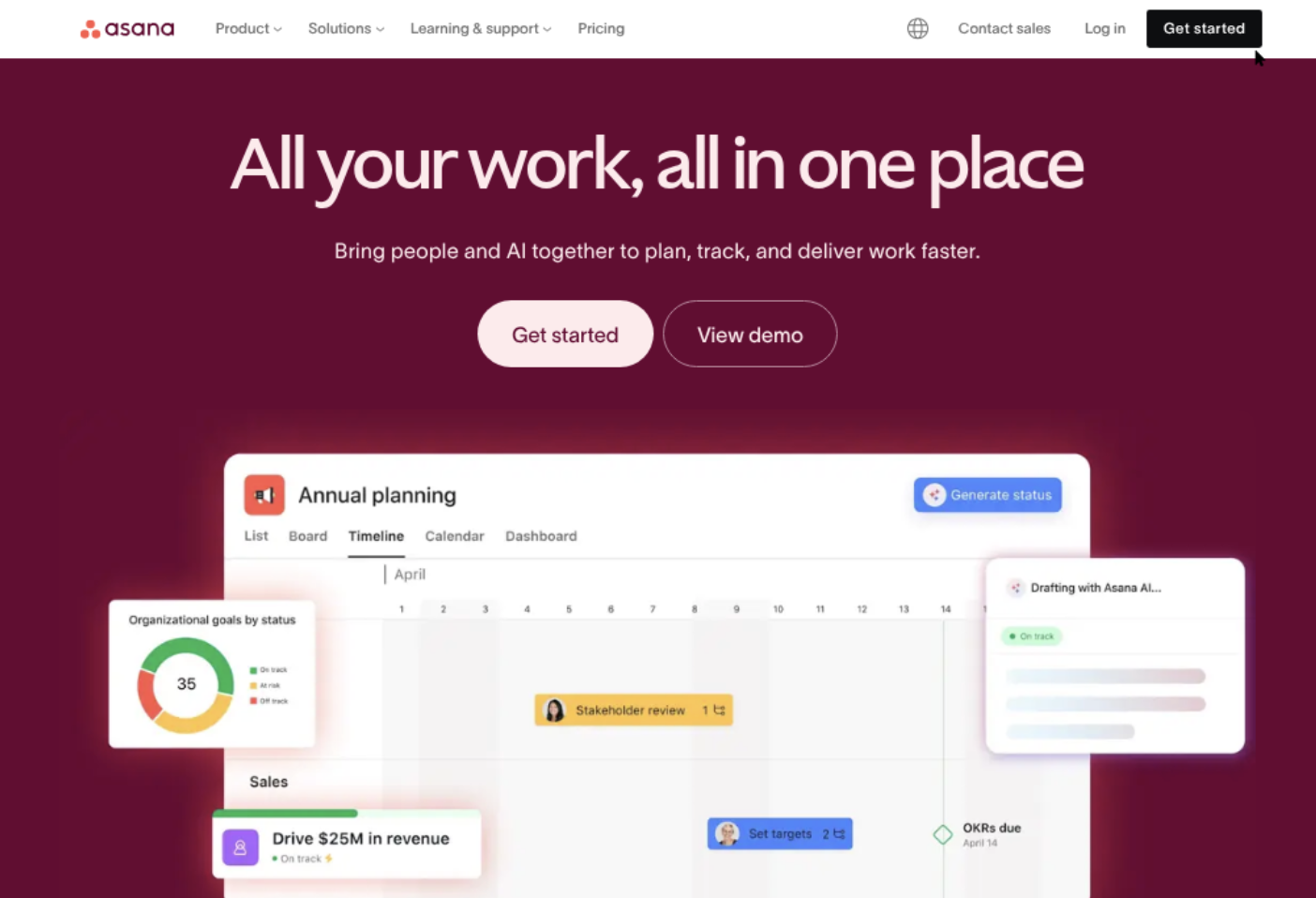
Asana’s Timeline view gives you a Gantt-style visual plan. It places tasks across a calendar, connects dependent work, and helps you see the project’s critical sequence.
Here’s how to set one up:
- Create a dedicated project. Start a new Asana project for the initiative you want to plan. Choose a clear layout, such as a list or board, then switch to Timeline after adding the initial work.
- Break the project into tasks. Add each meaningful activity as a task. For example, a website launch might include “Approve homepage design,” “Build landing page,” “Run quality review,” and “Publish campaign.”
- Add task owners. Assign each task to the person responsible for moving it forward. A clear owner prevents work from sitting untouched when several people participate in the same stage.
- Set start and due dates. Give every major task a realistic time window. Use dates that reflect actual working capacity rather than placing every deadline on the launch day.
- Connect dependencies. Mark which tasks must finish before others begin. For example, development may depend on design approval, while campaign promotion may depend on the landing page being ready.
- Add milestones. Create milestones for important checkpoints, such as “Design approved,” “Testing complete,” or “Project launched.” These make progress easier to scan than dozens of ordinary tasks.
- Review the Timeline and adjust the plan. Open Timeline, inspect task bars, and look for overlaps, gaps, and dependency conflicts. Drag dates when appropriate, then revisit the plan whenever priorities or delivery conditions change.
Step 1: Set Up the Project Structure
Start with the project’s outcome. A project called “Marketing Activities” is difficult to manage because it does not define a specific result. “Spring product launch” gives the team a shared destination.
Create sections that match the project phases. A practical structure might include planning, production, review, launch, and follow-up.
- Planning: clarify goals, audience, and scope
- Production: create the campaign assets and supporting work
- Review: complete approvals and quality checks
- Launch: publish the campaign and activate promotion
- Follow-up: measure performance and record lessons
This structure helps you group related tasks before you worry about exact dates. It also makes the Timeline easier to read when the project contains many activities.
Step 2: Turn Deliverables Into Manageable Tasks
A Gantt-style chart works best when each task represents a clear piece of work. “Prepare campaign” is too broad because it may include research, writing, design, approval, and publishing.
Break that activity into tasks with visible completion conditions. For example, “Write three email drafts” gives someone a clearer target than “Work on emails.”
Keep tasks small enough to estimate. A task that lasts several weeks may hide delays. If a task requires different skills, divide it into separate activities and assign each one to the right person.
You might be wondering: how detailed should the plan become? Include enough detail to manage timing and responsibility. Avoid adding tiny actions that create noise without improving control.
Step 3: Add Dates That Reflect Real Capacity
Set a start date and due date for every task that affects the project schedule. Then compare the plan with holidays, existing commitments, review cycles, and team availability.
For example, a copywriter may need three working days to write a landing page. If legal review usually takes four days, schedule both periods instead of assigning a single deadline.
Use milestone dates for outcomes rather than routine activities. “Launch approved” is a milestone because it marks a decision. “Write headline options” is a task because it represents work.
Dates should create a realistic forecast. If every task starts on Monday and ends on Friday, your chart may look tidy while hiding the actual sequence.
Step 4: Add Dependencies Between Tasks
Dependencies show the order of work. In Asana, connect tasks when one activity cannot begin until another reaches a defined point.
Consider this example:
- Approve product positioning.
- Write the landing page.
- Design the landing page.
- Review the page on mobile devices.
- Publish the campaign.
The writing task may depend on approved positioning. Design may depend on the final copy. Publishing may depend on successful testing.
Here's why: without dependencies, a delayed activity may remain isolated from the rest of the plan. With dependencies, you can identify which later work needs a new date.
Step 5: Add Milestones for Decision Points
Milestones act like visual checkpoints. They help you answer a simple question: has the project reached the outcome required for the next phase?
Useful milestones include:
- Scope confirmed
- Requirements approved
- Prototype accepted
- Testing completed
- Launch authorized
- Project closed
A milestone should represent a meaningful event, rather than a routine task with a dramatic name. “All launch assets ready” is useful when it confirms the team can proceed.
Place milestones where they clarify progress. Too many milestones can make the Timeline harder to interpret.
Step 6: Customize the Timeline View
Once your tasks have dates, open Timeline and inspect the visual sequence. Look for tasks that overlap unnecessarily, long gaps between phases, and work that extends beyond the target completion date.
Group related tasks through sections and keep task names action-oriented. “Review mobile layout” tells you more than “Mobile.”
Adjust the view when you need a different level of detail. A weekly view may help during active delivery, while a broader monthly view works better for executive planning.
The best part? You can use the Timeline for planning conversations without losing the task-level detail in the project itself.
Step 7: Maintain the Plan During Delivery
A Gantt-style chart becomes unreliable when the team stops updating it. Ask owners to adjust task status, dates, and completion details as work changes.
Set a short review rhythm. For a two-month project, a weekly review may be enough. For a launch happening next week, review the schedule every day.
During each review, ask:
- Which task changed since the last check?
- Which dependency is currently blocking progress?
- Which deadline now appears unrealistic?
- Does the final milestone still have enough time?
- Should the project scope or sequence change?
Let me explain: the chart is a planning instrument, not a one-time decoration. Its value comes from reflecting the project as it really exists.
What a Gantt-Style View Helps You See
A timeline turns a collection of tasks into a schedule. You can see duration, sequence, ownership, and important checkpoints in one visual space.
For example, a product launch plan may contain 40 tasks. In list view, those tasks can appear equally important. Timeline view shows that four activities control the launch date while several others can happen in parallel.
This distinction improves prioritization. If testing is delayed, you can focus attention there instead of treating every open task as equally urgent.
Task Duration
Each task appears across its planned working period. A one-day approval and a two-week development activity have different visual weight.
This helps expose estimates that need discussion. A supposedly simple approval stretching across ten working days may require a clearer owner or faster decision path.
Parallel Work
Some activities can happen at the same time. While a designer creates campaign graphics, a marketer may prepare audience segments.
Showing parallel work can shorten the overall project duration. It can also reveal overload when one person owns several activities scheduled for the same week.
Critical Sequence
The critical sequence includes tasks that directly affect the final milestone. If one of those tasks slips, the delivery date may slip with it.
You can identify this sequence by following dependencies backward from the final milestone. That approach helps you protect the work with the greatest schedule impact.
Example: Building a Product Launch Timeline
Imagine you are planning a four-week launch for a new mobile feature. The team includes a product manager, designer, engineer, tester, and marketing specialist.
Start with these phases:
- Planning: clarify positioning and success measures
- Product preparation: complete design and development
- Quality review: test the feature and resolve defects
- Launch preparation: create announcements and support guidance
- Release: publish the feature and monitor early results
Next, create tasks with realistic durations. Positioning may take two days, interface design four days, development eight days, testing three days, and launch preparation five days.
Connect the essential relationships. Development depends on approved design. Testing depends on a working build. Release depends on completed testing and approved communication.
The resulting plan may reveal that marketing can prepare audience messaging during development. That parallel work saves time without increasing release risk.
Simple Schedule Example
| Phase | Example activity | Typical relationship |
|---|---|---|
| Planning | Approve product positioning | Starts the production sequence |
| Design | Complete interface design | Depends on positioning |
| Development | Build the feature | Depends on approved design |
| Testing | Run functional checks | Depends on a working build |
| Launch preparation | Prepare announcements | Can overlap with development |
| Release | Publish the feature | Depends on testing and approval |
This example shows why task order matters. A team may complete several activities early while still waiting for one dependency before release.
How to Keep the Schedule Accurate
A timeline reflects the quality of the planning habits behind it. If owners update tasks late, the visual schedule gradually loses credibility.
Use a short weekly planning review. Compare planned dates with actual progress, then adjust upcoming activities before they become urgent.
Use Clear Status Definitions
Agree on what statuses mean. “In progress” should indicate active work, while “Waiting” should identify an external dependency or pending decision.
Clear definitions prevent a task from appearing active when nobody can advance it.
Track Changes at the Dependency Level
When one activity moves, check every connected task. A two-day delay in approval may affect design, testing, launch preparation, and the final milestone.
Reviewing only the delayed task creates a false sense of control. The schedule must show the effect across the sequence.
Protect Review Time
Approvals often receive less time than production work. Add realistic review windows for legal, security, leadership, or customer feedback.
For example, a campaign may take five days to create but another four days to approve. Leaving approval time out makes the launch date fragile.
Common Mistakes When Building an Asana Timeline
Many timeline problems come from planning habits rather than Asana settings. The following mistakes appear frequently in real projects.
Using One Task for a Whole Phase
A task named “Build website” can hide design, engineering, content, testing, and approval. Divide it into activities that have separate owners and completion conditions.
Adding Dates Without Dependencies
Dates alone create a calendar. Dependencies create a connected schedule. Link the tasks that genuinely control one another.
Ignoring Team Capacity
A plan can show ten tasks in one week for the same person. That may look efficient until you compare the workload with available working hours.
Move flexible tasks, reduce scope, or add support before the deadline becomes a crisis.
Creating Too Many Tiny Tasks
Excessive detail increases maintenance. If every small action becomes a task, important milestones disappear among low-impact items.
Group routine actions when they share an owner, deadline, and completion condition.
Failing to Update the Plan
An outdated timeline creates poor decisions. Schedule a recurring review and make updates part of normal project work.
Natural Project Timeline Solution: ONES.com

Value Proposition
ONES.com combines project management and knowledge management in one platform, with AI support through ONES Assistant. ONES Project is a Jira alternative for teams that need structured planning, dependencies, reporting, and flexible deployment options.
ONES Project and ONES Wiki are sold separately, so you can choose the project or knowledge capabilities your team requires.
Core Capabilities
- Scattered project planning → unified project workspace → keep tasks, schedules, owners, and progress in one connected environment.
- Rigid workflow steps → custom workflows and fields → adapt project stages, metadata, and approval paths to your operating process.
- Unclear delivery progress → built-in reporting → review status, workload, and schedule health without assembling separate reports.
- Manual sprint coordination → sprint management → plan iterations, assign work, and compare intended progress with completed activities.
- Repetitive project administration → automation → reduce routine updates and trigger consistent actions across recurring workflows.
- Complex migration expectations → Jira-compatible workflows → give Jira-oriented teams a familiar project structure while moving to an alternative platform.
- Security or hosting restrictions → four deployment choices → select Cloud, On-Premise, Private Cloud, or Air-gapped deployment according to your environment.
- Different behavior across hosting models → full feature parity → maintain the same core capabilities across cloud and self-hosted versions.
Application Scenarios
Software release planning: A development team can organize epics, sprints, dependencies, testing activities, and release milestones. Built-in reporting gives project leads a clearer view of delivery progress.
Approval-heavy operations: A regulated team can create custom workflows for review, approval, implementation, and verification. Air-gapped or on-premise deployment can support restricted environments.
Cross-functional launch programs: Marketing, product, design, and engineering can coordinate shared milestones while retaining their own task details. ONES Wiki can support related knowledge management when that capability is purchased separately.
Common Challenges and Practical Solutions
Challenge: The Chart Looks Too Complicated
Solution: Show only meaningful activities and milestones. Group routine work into phases, then use filters or sections to focus a planning discussion on the relevant area.
Challenge: Dates Keep Moving
Solution: Review the reason for each change. If delays come from approvals, add explicit review tasks. If they come from capacity, rebalance assignments before changing the final milestone.
Challenge: Dependencies Do Not Match Reality
Solution: Ask task owners what must happen before their work can begin. Remove artificial links and add genuine blockers, including decisions, reviews, and access requirements.
Challenge: People Do Not Update Tasks
Solution: Keep updates simple. Define one owner, one current status, one realistic date, and one next action for each active task.
Challenge: The Project Finishes Late Despite a Detailed Plan
Solution: Check whether the plan includes approval time, rework, holidays, and technical uncertainty. A detailed schedule can still be optimistic if it ignores normal delivery friction.
FAQs
Can I create a Gantt chart directly in Asana?
Yes. Asana provides a Timeline view that works like a Gantt chart. You can place tasks across dates, connect dependencies, add milestones, and review how activities fit together. Start by creating a project with clear tasks and dates, then open Timeline. The quality of the result depends on accurate task breakdown, realistic scheduling, and regular updates.
Does Asana have a traditional Gantt chart?
Asana’s Timeline provides the main features people expect from a Gantt-style plan, including task bars, dates, dependencies, and milestones. The exact appearance may differ from dedicated scheduling applications. For many marketing, product, and operations projects, Timeline offers enough visibility to coordinate work and identify schedule risks.
How many tasks should I add to an Asana timeline?
Add tasks that affect timing, ownership, or delivery quality. A launch plan may need separate tasks for writing, design, approval, testing, and publishing. It usually does not need a separate task for every short action. If the view becomes difficult to scan, combine routine activities or organize them under clear project sections.
What is the difference between a task and a milestone?
A task represents work that someone must complete. A milestone represents an important event or achievement, such as approved scope, completed testing, or authorized launch. Tasks explain how the team reaches an outcome. Milestones show whether the project has reached a meaningful checkpoint.
How often should I update the timeline?
Review it at least weekly for most projects. During a critical launch or release, review it more often. Update dates when work changes, connect newly discovered dependencies, and confirm that the final milestone remains realistic. A short recurring review is easier to maintain than a major schedule repair after several weeks.
Conclusion
Creating a Gantt-style plan in Asana requires seven essentials: a dedicated project, manageable tasks, realistic dates, clear owners, meaningful dependencies, useful milestones, and regular maintenance.
But here's the truth: the visual chart cannot fix an unclear plan by itself. Break down the work, expose the sequence, protect review time, and update the schedule when reality changes.
When you do that, Asana Timeline becomes more than a calendar view. It becomes a practical way to see what must happen next, where delays may spread, and which work deserves attention first.