How to Create a Gantt Chart in Asana: 7 Simple Steps [2026]
Asana makes task management feel simple, but building a clear project timeline can become frustrating. You may have tasks, deadlines, dependencies, and team members scattered across several views.
Then the real trouble begins: without a visual schedule, missed handoffs and unrealistic deadlines stay hidden until they affect the whole project. A list of tasks rarely shows how one delay can push everything else back.
But here’s the truth: you can create a practical Gantt-style timeline in Asana by using Timeline, adding task dates, linking dependencies, and adjusting the schedule as work changes.
This guide walks you through seven simple steps. You’ll also learn how to avoid common planning mistakes and when another project management platform may fit your workflow better.
How to Create a Gantt Chart in Asana
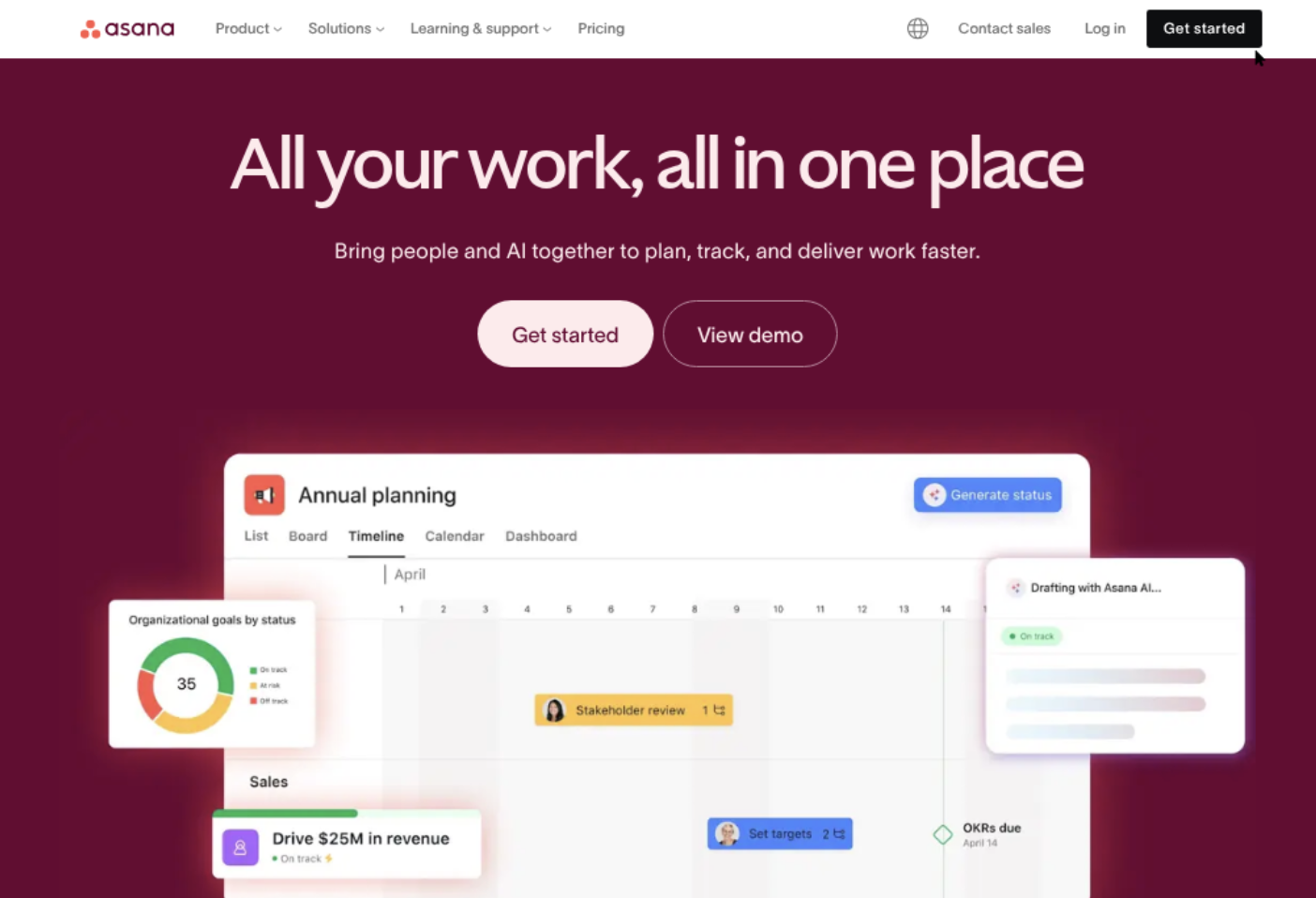
Asana’s Timeline view gives you a Gantt-style project schedule. You can turn tasks into horizontal bars, connect dependencies, assign owners, set dates, and see how work progresses across a calendar.
Here’s how to build one:
- Create a project in Asana. Start with a dedicated project for the campaign, product launch, construction plan, or other initiative you want to schedule.
- Add every major task. Break the project into deliverables and smaller activities. Give each task a clear name and assign an owner.
- Add start and due dates. Enter realistic dates so Asana can place each activity on the timeline.
- Open Timeline view. Switch from the standard task list to Timeline to see your schedule as horizontal bars.
- Set task dependencies. Link activities that rely on earlier work, such as “Approve design” before “Publish landing page.”
- Adjust the schedule. Drag task bars, change durations, and review conflicts between people or activities.
- Monitor progress and update the plan. Keep the timeline current as tasks finish, deadlines move, or new work appears.
1. Create a dedicated project
Open Asana and create a project for one clear outcome. A project called “Website Redesign” is more useful than a broad workspace called “Marketing Work.”
Choose a layout that supports task planning, then add the project’s sections. Common sections include Discovery, Design, Development, Testing, and Launch.
Keep the project focused. If unrelated work shares the same schedule, the timeline becomes crowded and difficult to maintain.
2. Add tasks and assign owners
List the work required to complete the project. Include both visible deliverables and smaller activities that could affect the schedule.
For example, a product launch may include:
- Confirm launch requirements
- Write product messaging
- Design promotional graphics
- Review legal claims
- Build the landing page
- Configure analytics
- Complete quality checks
- Publish the campaign
Assign one accountable owner to each task. Several contributors may help, but a single owner makes responsibility easier to understand.
3. Add realistic dates
Every timeline task needs a start date, a due date, or both. A task with only a title cannot show its duration or effect on the wider schedule.
Estimate time using the work itself. “Write five product pages” should not receive the same duration as “Review one headline.”
Leave room for reviews and revisions. If design normally takes three working days and approval takes two more, combine those expectations into the schedule instead of hiding them.
4. Open Timeline view
Open the project and select Timeline. Asana will display dated tasks as bars across a calendar.
The horizontal position shows when work happens. The length of each bar represents the planned duration. This makes overlaps, gaps, and crowded periods easier to spot.
You can zoom into a week for detailed planning or zoom out to review the full project. A launch team may use a weekly view during execution and a monthly view during early planning.
5. Connect dependent tasks
Dependencies show which task must happen before another task can begin. They are essential when timing matters.
For example, a development task may depend on approved designs. Testing may depend on a completed build. Publishing may depend on final approval.
Here’s why: if the design approval moves by three days, every connected task may need attention. A dependency chain makes that impact visible sooner.
Use dependencies selectively. Linking every task can create unnecessary complexity. Focus on relationships where one activity genuinely blocks another.
6. Review conflicts and balance the schedule
Look for overlapping work assigned to the same person. A designer may appear responsible for branding, interface design, presentation graphics, and launch support during the same week.
That schedule may look efficient until you consider actual working capacity. Move lower-priority work, extend the timeline, or add another contributor.
Also inspect gaps between dependent tasks. A blank period may represent useful buffer time, or it may show that the next activity has no planned start date.
7. Keep the timeline current
A Gantt-style schedule is useful only when it reflects the project’s current reality. Update task dates when work changes, mark completed activities, and add newly discovered work.
Review the timeline during a weekly project meeting. Ask three practical questions:
- Which task is currently blocking progress?
- Which deadline is most at risk?
- What needs to change before the next review?
The best part? A short review prevents the timeline from becoming an attractive plan that nobody trusts.
What an Asana Gantt-Style Timeline Should Show
A useful project timeline connects four elements: work, time, ownership, and relationships. If one element is missing, the schedule may look complete while still hiding risk.
| Timeline element | What it helps you understand |
|---|---|
| Task bar | When an activity begins, how long it lasts, and when it should finish |
| Task owner | Who is responsible for moving the work forward |
| Dependency | Which activity must happen before another can begin |
| Milestone | A meaningful checkpoint, such as approval, testing, or launch |
| Progress status | Whether work is planned, active, blocked, or complete |
For example, “Publish mobile app” should not stand alone. A stronger timeline connects it to development, testing, store preparation, approval, and release communication.
Let me explain: the chart is valuable because it turns those relationships into a visual schedule. It is not merely a collection of colored bars.
Use milestones for major checkpoints
Milestones represent important moments rather than long activities. Examples include “Design approved,” “Beta released,” and “Campaign live.”
Place milestones after the work required to reach them. This creates visible checkpoints for leadership, clients, or other teams.
Separate phases from individual tasks
Use sections for broad phases and tasks for the work inside each phase. This creates a hierarchy that stays readable as the project grows.
A software release might use phases such as Planning, Build, Validation, and Release. Each phase can contain several specific tasks and one or more milestones.
Example: Building a Product Launch Timeline
Imagine you are coordinating a product launch scheduled for June 30. The project includes marketing, design, engineering, and customer support.
You could organize the schedule like this:
| Phase | Example tasks | Key dependency |
|---|---|---|
| Planning | Confirm audience, define launch goals, approve message | Message approval before campaign production |
| Creative | Design graphics, write landing page copy, prepare emails | Approved message before final creative |
| Build | Create landing page, configure forms, set analytics | Final copy and graphics before implementation |
| Validation | Run quality checks, test forms, review tracking | Build complete before testing |
| Launch | Approve campaign, schedule promotion, publish | Validation complete before launch |
Suppose the landing page takes two days longer than expected. The timeline shows whether testing must move, whether the launch date remains realistic, or whether you need additional help.
You might be wondering: should every task appear on the chart? Include work that affects timing, ownership, cost, quality, or dependencies. Tiny actions can stay outside the main view if they do not influence the schedule.
Use the critical path to focus attention
The critical path is the chain of dependent tasks that determines the earliest possible finish date. If one task on that chain slips, the project may slip too.
For the launch example, final copy, landing page production, quality checks, and publication may form the critical path. Social media preparation may happen in parallel and therefore have more flexibility.
Mark critical activities clearly through naming, custom fields, or a dedicated project section. This helps you spend review time where delays matter most.
Common Mistakes When Planning an Asana Timeline
Many timeline problems come from planning habits rather than software limitations. A few small choices can make the schedule misleading.
Adding dates without checking capacity
A calendar may show four tasks assigned to one person during the same two-day period. The dates are technically valid, but the workload is not.
Compare the planned work with actual availability. Account for meetings, support duties, holidays, and review cycles.
Making every task dependent
Dependencies should reflect real sequencing. If two tasks can happen at the same time, do not connect them simply to make the chart look orderly.
Overlinking creates a fragile schedule. A small change may appear to affect half the project when parallel work could continue.
Using vague task names
“Marketing,” “Website,” and “Testing” are too broad for effective scheduling. A better task name describes an observable result, such as “Approve homepage headline” or “Test checkout on Safari.”
Clear names help team members estimate effort and recognize completion.
Ignoring review and approval time
Creative and technical work often includes feedback. If the plan only shows production time, the deadline may be optimistic from the start.
Add separate review activities when approval can delay the next phase. This is especially useful for legal, security, brand, and executive reviews.
Failing to update completed work
An old timeline can create false confidence. Mark finished tasks, adjust delayed work, and record new activities as the project develops.
A five-minute update after a weekly meeting can preserve much of the chart’s value.
Natural Project Timeline Solution: ONES.com

Value Proposition
ONES.com combines project management and knowledge management in one platform. If you need Gantt-style scheduling with stronger workflow control, reporting, and deployment flexibility, ONES Project offers a practical Jira alternative.
It can reduce the need to connect several plugins while supporting cloud, on-premise, private cloud, and air-gapped deployments.
Core Capabilities
- Scattered project information → Unified project workspace → Keep tasks, schedules, discussions, and project knowledge connected so your team spends less time switching between tools.
- Limited timeline control → Custom workflows and fields → Adapt statuses, fields, and approval stages to match the way your team actually works.
- Unclear task sequencing → Jira-compatible workflows and dependencies → Represent handoffs, blocked work, and approval paths more clearly across complex projects.
- Manual progress reporting → Built-in reporting → Review project health, workload, progress, and delivery trends without assembling separate reports each week.
- Heavy sprint administration → Sprint management → Plan iterations, organize backlog work, and monitor sprint progress within the same project environment.
- Repetitive coordination → Automation → Trigger routine actions such as status changes, notifications, or assignments when defined conditions occur.
- Plugin dependency → Native feature parity → Access core project capabilities without relying on a long chain of add-ons that require separate maintenance.
- Deployment restrictions → Four deployment options → Choose cloud, on-premise, private cloud, or air-gapped deployment according to your organization’s operating requirements.
- Separate knowledge and delivery work → ONES Wiki integration → Connect project execution with team knowledge management, while using ONES Wiki separately when a dedicated knowledge base is preferred.
Application Scenarios
Software delivery teams: A development group can plan sprints, connect dependencies, automate workflow transitions, and review delivery reports. This is useful when a simple task list cannot show technical handoffs.
Regulated organizations: A team with restricted network requirements can use an air-gapped or on-premise deployment. The schedule remains available within the organization’s controlled environment.
Cross-functional launches: Marketing, product, design, and engineering can share a structured workflow while keeping approvals visible. ONES Project can support teams looking beyond Asana or seeking a Jira alternative with deployment flexibility.
Common Challenges and Practical Solutions
Challenge: The project has too many tasks
Solution: Group related work into phases and show only schedule-impacting activities in the main timeline. Keep detailed subtasks available without overcrowding the overview.
Challenge: Deadlines keep changing
Solution: Review dependencies after every major change. Move connected activities together when necessary, then communicate which milestone or launch date is affected.
Challenge: Team members do not check the timeline
Solution: Use the timeline during regular meetings. Discuss one blocked task, one upcoming milestone, and one schedule risk instead of treating the chart as a passive display.
Challenge: Estimates are consistently too optimistic
Solution: Compare estimated and actual durations after each project. Add review time, transition time, and reasonable buffer to future plans.
Challenge: The schedule shows activity but not priorities
Solution: Identify critical-path work and major milestones. A busy timeline does not automatically indicate meaningful progress.
FAQs
Does Asana have a true Gantt chart?
Asana provides a Gantt-style Timeline view rather than requiring a separate charting application. You can display tasks across dates, connect dependencies, assign owners, and adjust durations visually. The exact features available may depend on your Asana plan and workspace settings, so check your current account capabilities before planning a large project.
Can I create a Gantt chart in Asana for free?
Access to Timeline and related planning features can depend on the Asana plan you use. Open your project and check whether Timeline is available in the project views. If it is not available, you can still organize work with task lists, dates, sections, and milestones, then review the project through calendar-style planning.
How many tasks should a Gantt-style timeline include?
Include every activity that affects timing, ownership, dependencies, risk, or delivery. Avoid adding trivial actions that do not change the schedule. For a small launch, 20 to 40 well-defined tasks may be enough. Larger initiatives can use phases, milestones, and filtered views to keep the main schedule readable.
How do dependencies help in Asana?
Dependencies show the order of connected work. If testing depends on development, a delay in development signals a possible testing delay. This gives you a chance to adjust resources or dates earlier. Use dependencies for genuine blockers, because linking unrelated activities can make the schedule unnecessarily rigid.
Can I use a Gantt-style timeline for agile projects?
Yes. Agile teams can use a timeline for releases, milestones, cross-team dependencies, and broader delivery forecasts. Sprint-level work may be managed through boards or sprint views, while the timeline shows how several iterations contribute to a release. This combination supports both short-cycle execution and longer-range planning.
When should I choose another project management platform?
Consider another platform when you need deeper workflow customization, native reporting, controlled deployment options, or stronger connections between project work and knowledge management. For example, ONES Project may suit teams comparing Asana with a Jira alternative or managing projects in on-premise, private cloud, or air-gapped environments.
Conclusion
Creating a Gantt-style chart in Asana takes seven practical moves: create a focused project, add tasks, assign owners, enter dates, open Timeline, connect dependencies, and keep the schedule updated.
The chart becomes genuinely useful when it shows more than deadlines. Add milestones, account for capacity, identify critical work, and include review time before promising a delivery date.
But here’s the truth: a timeline cannot rescue unclear ownership or unrealistic estimates. It can reveal those problems early, giving you time to respond.
If Asana’s timeline meets your needs, use it as a regular planning and review tool. If your team requires more workflow customization, built-in reporting, or flexible deployment, explore ONES.com and ONES Project as a broader project management option.