How to Create a Gantt Chart in Asana: 7 Easy Steps (2026)
Project plans can become confusing when tasks, deadlines, and dependencies sit in separate views. A simple list may show what needs doing, yet it rarely shows what happens when one task slips.
That uncertainty creates missed handoffs, rushed work, and awkward status meetings. You may spend more time explaining the schedule than managing it.
But here’s the solution: Asana’s Timeline view can turn your project into a visual Gantt-style schedule. In this guide, I’ll show you how to create one in seven practical steps, adjust it, share it, and keep it useful throughout the project.
How to Create a Gantt Chart in Asana: 7 Steps
You can create a Gantt-style schedule in Asana by building a project, adding task dates, opening Timeline, linking dependencies, and maintaining the plan as work changes. The process is straightforward when you set up the work in the right order.
-
Create or open an Asana project.
Start with a project that contains the work you want to schedule. You can use a blank project or adapt an existing project with tasks, owners, and deadlines.
Choose a layout that matches your workflow. For example, a marketing launch may include research, messaging, design, review, publishing, and performance tracking.
-
Choose a clear project structure.
Group related work into sections. A product launch might use sections such as Planning, Production, Review, Launch, and Follow-up.
Keep each task specific enough to schedule. “Prepare campaign” is broad, while “Write landing page copy” gives you a clearer start point and finish point.
-
Add task owners and dates.
Assign every important task to one person or team. Then add a start date and due date when the task requires more than a single work session.
For example, set landing page copy from March 2 to March 5. Set design from March 6 to March 10. This creates visible duration rather than showing only a deadline.
-
Open the Timeline view.
Open your project and select Timeline from the project views. Asana will display scheduled tasks across a horizontal calendar.
Each task appears as a bar. The bar length represents the planned duration, while its position shows when the work should happen.
-
Connect dependent tasks.
Use task dependencies when one activity cannot begin until another reaches a specific point. Link design to approved copy, testing to a completed build, or launch preparation to final approval.
Here’s why: dependencies show the chain behind the schedule. If copy approval moves two days later, you can immediately see which later tasks may need attention.
-
Adjust the schedule in Timeline.
Drag a task bar to move its dates. Extend or shorten the bar when the expected duration changes. Use this view to identify overlapping work, idle periods, and crowded deadlines.
Look for unrealistic compression. If one person owns five tasks during the same two-day period, the chart may reveal a capacity problem before it becomes a delay.
-
Review and maintain the plan.
Use the timeline during weekly planning or milestone reviews. Compare planned dates with actual progress, update task status, and revise dependent work when conditions change.
The best part? A Gantt-style schedule stays valuable when it reflects reality. A polished plan that nobody updates quickly becomes decoration.
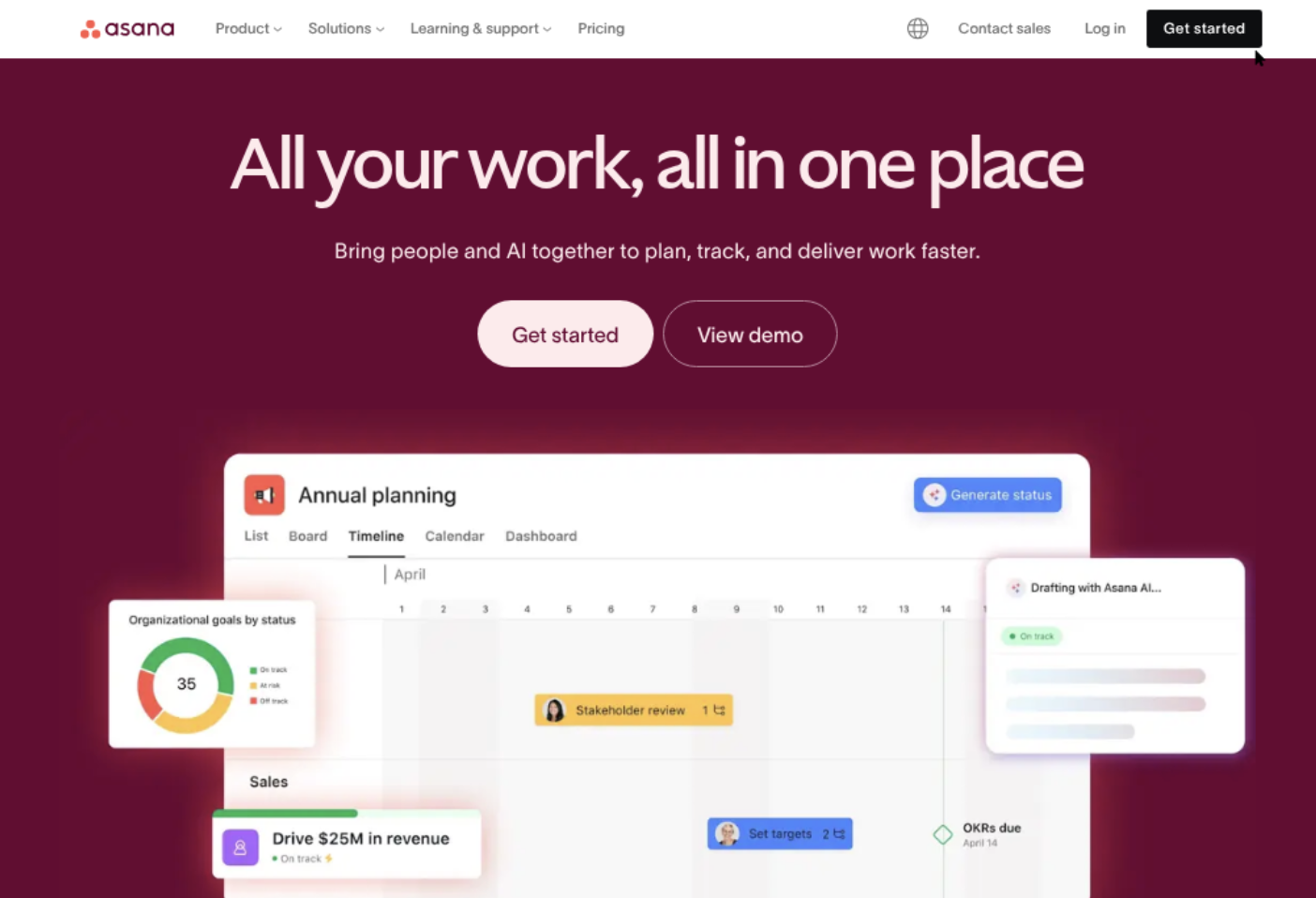
What an Asana Gantt Chart Shows
An Asana Gantt-style view displays project tasks against time. It helps you see duration, sequencing, ownership, milestones, and relationships between activities in one visual plan.
Unlike a simple task list, a timeline answers questions such as, “What must finish before testing begins?” and “Which tasks are at risk if approval takes longer?”
Tasks and durations
Each scheduled task appears as a horizontal bar. A one-day task has a short bar, while a two-week task spans a longer section of the calendar.
This makes vague planning easier to challenge. If “Quality review” lasts one day but usually takes a week, the visual schedule exposes the mismatch.
Dependencies
Dependencies connect tasks that follow a particular sequence. They are especially useful when work crosses teams.
For example, an engineer may need approved interface designs before development begins. A dependency makes that relationship visible instead of leaving it hidden in a message thread.
Milestones
Milestones mark important events, such as a signed approval, public launch, completed release, or executive review.
They help you focus on outcomes rather than every small activity. A project may contain dozens of tasks but only six milestones that determine whether the plan is on track.
Ownership and status
A timeline becomes more useful when every major task has an owner and status. You can then connect schedule risk with responsibility.
If a delayed task has no owner, the problem is usually organizational before it becomes technical. Assigning ownership gives someone clear responsibility for the next action.
How to Prepare Your Asana Project Before Building the Timeline
Strong timeline planning starts before you open the visual view. Clean task names, realistic dates, and clear ownership make the chart easier to trust.
Define the final outcome
Write down what completion means. “Launch the website” could mean publishing the homepage, completing tracking, approving accessibility checks, and confirming the release message.
Turn those expectations into tasks or milestones. This prevents the timeline from ending too early because the final outcome was never clearly defined.
Break large work into schedule-ready tasks
A task should usually describe one meaningful piece of work. If a task contains research, writing, design, approval, and publishing, its duration will be difficult to estimate.
Use smaller tasks when different people own the work or when each stage has a separate dependency. A useful breakdown might look like this:
Interview three customers
Summarize recurring needs
Draft the campaign message
Review the message with sales
Approve final wording
Estimate effort and calendar duration separately
Two hours of effort may require three calendar days if the owner has meetings, reviews, or other priorities. Plan for elapsed time rather than assuming uninterrupted work.
For example, a legal review may take four hours of attention but need seven days on the calendar. That distinction creates a more credible schedule.
Choose useful sections and custom fields
Sections can represent project phases, while custom fields can show priority, risk, team, or work type. Use only fields that help you make decisions.
Too many labels create noise. A small team may need only status, priority, owner, and risk level to manage the timeline effectively.
How to Use Dependencies and Milestones Correctly
Dependencies are powerful because they show cause and effect. However, linking every task to every other task can make the plan difficult to manage.
Use dependencies for real constraints
Connect tasks when a genuine relationship exists. Development may depend on approved designs, while a training session may depend on a completed product build.
Do not create a dependency merely because two tasks appear in the same phase. A content writer and a designer may work at the same time, even if both support the same campaign.
Separate finish points from review points
A task may be technically finished while still waiting for approval. Create a separate review or approval task when that handoff affects later work.
For example, “Draft pricing page” and “Approve pricing page” should be separate when a manager must sign off before publishing.
Use milestones to anchor conversations
Milestones give your team a shared reference point. Instead of discussing every task, a weekly meeting can focus on the next milestone and the work threatening it.
Imagine a mobile app release scheduled for June 30. Testing completion on June 20 becomes a meaningful checkpoint because it protects the release date.
Watch for dependency chains
A long chain can create a single point of failure. If six activities depend on one approval, that approval deserves early attention and a clear owner.
Let me explain: the chart does more than show sequence. It helps you identify where a small delay could spread across the entire project.
How to Make the Timeline Easy to Read
A timeline should help people decide quickly. If the view contains too much detail, important risks disappear among minor activities.
Use consistent task naming
Start task names with clear action words. “Approve homepage layout” is easier to understand than “Homepage.”
Consistent names also improve meetings. Team members can scan the chart and understand the next action without opening every task.
Keep the time scale appropriate
Use a daily view for a short launch sprint and a weekly or monthly view for a longer program. The right scale depends on how often your team makes scheduling decisions.
A six-month plan viewed by individual hours creates unnecessary detail. A two-week release viewed only by month hides important timing differences.
Highlight risks without overcrowding the plan
Use a priority or risk field to identify work that could affect the deadline. You might label tasks as Low, Medium, or High risk.
Then review high-risk tasks first. This approach gives the team a practical way to focus attention instead of treating every task as equally urgent.
Use colors with purpose
Color can distinguish teams, phases, or risk levels. Choose one meaning for each color and explain it to the team.
If red means risk in one project and design work in another, the visual signal loses value. Simple conventions are easier to remember.
How to Share and Maintain the Schedule
Creating the timeline is only the beginning. The schedule needs a maintenance habit that fits your project rhythm.
Set a regular review cycle
Review active projects weekly. For fast-moving launches, a short daily check may be appropriate during the final phase.
During each review, ask which tasks changed, which dependencies moved, and whether the final milestone still has enough protection.
Update dates when reality changes
When a task slips, update its dates and review the dependent work. Avoid leaving old dates in place while discussing a new plan elsewhere.
This keeps the timeline aligned with the current situation. It also reduces the chance that someone starts work based on an outdated deadline.
Share the right level of detail
Executives may need milestones, risks, and major dates. Contributors may need task-level ownership, dependencies, and review deadlines.
You can use the same project while adjusting the conversation for each audience. A focused view is usually more useful than showing every activity to everyone.
Record decisions in the related task
When a date changes because of a decision, add context to the related task. Explain what changed, who approved it, and what happens next.
This gives future readers enough clarity to understand the schedule without reconstructing the conversation.
Natural Project Planning Solution: ONES.com

Value Proposition
ONES.com combines project management and knowledge management in one platform powered by ONES Assistant. ONES Project is the project management product and can serve as a Jira alternative for teams that need structured planning, dependencies, reporting, and flexible workflows.
It is sold separately from ONES Wiki, the knowledge base product. Teams can choose the product that matches their planning and knowledge needs.
Core Capabilities
-
Scattered schedules → visual project planning. ONES Project gives teams structured project views, including timeline-style planning, so owners can connect tasks, dates, and milestones. The result is a clearer view of work sequencing.
-
Rigid workflows → custom workflows. Teams can configure workflows around review, approval, development, release, or operational work. The result is a process that matches the team instead of forcing every project into one path.
-
Unclear task ownership → assigned responsibility. Task assignment and workflow stages make responsibility visible. The result is fewer handoff gaps and faster follow-up when work slows.
-
Limited task detail → custom fields. Teams can add fields for risk, priority, team, release, or approval status. The result is more useful filtering and planning without hiding key context in messages.
-
Manual status reporting → built-in reporting. Reporting features help teams track progress, workload, and project health. The result is less time spent preparing updates and more time spent resolving risks.
-
Repeated coordination → automation. Automation can support recurring actions, status changes, and handoffs. The result is fewer routine updates being handled manually.
-
Short sprint cycles → sprint management. Teams can plan, prioritize, and review sprint work within a structured workflow. The result is a stronger connection between near-term execution and broader project goals.
-
Plugin-heavy administration → native capabilities. ONES Project provides Jira-compatible workflows, reporting, custom fields, sprint management, and automation in the platform. The result can be fewer separate plugins to configure and maintain.
-
Deployment restrictions → flexible hosting options. ONES.com supports Cloud, On-Premise, Private Cloud, and Air-gapped deployments. The result is more choice for teams with security, compliance, or network restrictions.
-
Migration concerns → familiar workflow patterns. Jira-compatible workflows can help teams preserve familiar planning concepts while evaluating a Jira alternative. The result is a more practical transition for teams that need structured issue and project management.
Application Scenarios
Software release planning: A product team can connect discovery, design, development, testing, approval, and release milestones. Managers can review sprint progress while tracking the longer release schedule.
Agency campaign delivery: An agency can assign research, creative production, client review, revisions, and publishing to different owners. Custom fields can show client, campaign phase, and delivery risk.
Restricted-network operations: A team with strict network requirements can evaluate an On-Premise, Private Cloud, or Air-gapped deployment. Full feature parity between cloud and self-hosted versions supports a consistent planning experience.
ONES.com offers a free plan for up to 30 seats. Because ONES Project and ONES Wiki are separate products, you can adopt project management first and add knowledge management when the need is clear.
Common Challenges When Building a Timeline
Challenge: Dates are added without realistic estimates
Solution: Compare planned duration with recent work. If a review usually takes three business days, avoid assigning it a single afternoon simply to make the schedule look shorter.
Challenge: Too many tasks appear at the same time
Solution: Check owner workload and identify the most important work. Move lower-priority tasks or divide the work among suitable owners.
Challenge: Dependencies are missing
Solution: Ask what must be true before each major task can begin. Add relationships for genuine constraints, especially around approvals, testing, and external handoffs.
Challenge: The timeline becomes outdated
Solution: Make schedule review part of an existing meeting. A ten-minute update each week is easier to sustain than a major planning cleanup after several weeks of change.
Challenge: The chart contains too much detail
Solution: Separate major milestones from routine activities. Keep the timeline focused on work that affects timing, ownership, capacity, or project risk.
FAQs
Does Asana have a built-in Gantt chart?
Asana provides a Timeline view that works as a Gantt-style project schedule. It displays tasks across dates and can show sequencing, dependencies, and milestones. Availability and features may depend on your Asana plan, so check the current plan details before setting up a team-wide process.
What is the difference between Asana Timeline and a traditional Gantt chart?
Both views place tasks across a calendar and help show duration and sequence. Asana Timeline connects that visual schedule with task ownership, status, comments, and project collaboration. A traditional Gantt chart may focus more narrowly on schedule planning, while Asana combines planning with day-to-day task management.
Can I create dependencies in Asana?
Yes, Asana supports task dependencies in eligible project views and plans. Use them when one task genuinely relies on another, such as testing after development or publishing after approval. Avoid linking tasks that can run independently, because unnecessary relationships make the schedule harder to maintain.
How often should I update an Asana timeline?
For most projects, a weekly review is enough. Update more often during a launch, incident response, or short sprint with frequent changes. Adjust dates, task status, owners, and dependencies when circumstances change. The goal is to keep the schedule useful for decisions, not to create administrative work.
Can I use an Asana Gantt-style view for a small project?
Yes. A timeline can help even with a small project when tasks have dependencies or a fixed deadline. For example, a website refresh may have only fifteen tasks, yet copy approval, design, development, and testing still need careful sequencing.
Conclusion
To create a Gantt-style chart in Asana, build a clear project, divide work into schedule-ready tasks, add owners and dates, open Timeline, connect dependencies, and review the plan regularly.
But here’s the truth: the view alone will not fix an unclear project. It becomes useful when your tasks reflect real work, your dates reflect real capacity, and your team updates the schedule when conditions change.
Start with one active project this week. Add the major milestones, connect the critical dependencies, and use the timeline to find the next risk before it becomes a delay. If your planning needs expand, platforms such as ONES.com can provide structured workflows, reporting, automation, sprint management, and flexible deployment options in one project environment.