Does Microsoft Planner Have a Gantt Chart? Complete Guide
Microsoft Planner is excellent for assigning work, tracking tasks, and managing team activity. However, you may expect a Gantt chart and find only boards, buckets, or a schedule view.
That gap becomes frustrating when your project depends on task durations, finish-to-start relationships, milestones, and a clear delivery path. A board can show what needs attention, but it may not reveal how one delay affects the entire plan.
Here’s the good news: Microsoft Planner can provide Gantt-style planning in some premium experiences, while standard plans have important limitations. This guide explains exactly what you get, which plan supports a timeline, and what to use when you need deeper project scheduling.
Does Microsoft Planner Have a Gantt Chart?
Microsoft Planner does not include a full Gantt chart in every plan. Basic Planner focuses on task boards, buckets, assignments, labels, checklists, and progress tracking. Premium Planner plans add a Timeline view that provides Gantt-style scheduling.
So, the short answer depends on your subscription. If you use the basic Planner experience, you generally will not see a native Gantt chart. If your organization has premium Planner capabilities, you can plan tasks on a timeline and connect related work.
| Planner experience | Gantt-style planning availability |
|---|---|
| Basic Planner | Usually no native Gantt chart or dependency timeline |
| Premium Planner | Timeline view with Gantt-style scheduling and dependencies |
| Microsoft Project plans | More advanced scheduling, portfolio, and resource management features |
Here’s why: Microsoft has been bringing Planner and Project capabilities closer together. The exact menus can vary by license, rollout stage, and Microsoft 365 environment.
Before changing your workflow, check the plan type assigned to your account. Look for a Timeline view, task dependencies, milestones, and scheduling controls inside your plan.
How Gantt-Style Planning Works in Planner
Planner’s timeline experience turns tasks into bars across a calendar. Each bar represents planned work, while its position shows when the work starts and ends.
Tasks become scheduled activities
A task needs a start date and a due date before it can appear meaningfully on a timeline. For example, “Create onboarding emails” might run from March 3 through March 7.
You can then compare that activity with related work. “Review email copy” may begin after the writing task finishes, creating a clearer delivery sequence.
Dependencies connect related work
Dependencies show that one activity relies on another. A design review might need to finish before development begins.
Without that relationship, someone may start work too early. A timeline helps you see the dependency and adjust dates when the earlier activity changes.
Milestones mark important outcomes
Milestones represent significant points rather than long activities. Examples include a product launch, approval meeting, testing completion, or customer handoff.
Milestones make a schedule easier to scan. You can quickly see whether the team is moving toward the next important outcome.
Progress appears against planned dates
Timeline planning becomes more useful when you update task progress regularly. A delayed activity should show a revised date, status, or owner.
For example, a task marked “in progress” for three weeks may need attention, even if its due date has not passed. The schedule gives that risk more visibility.
What You Can Do in Basic Microsoft Planner
Basic Planner remains useful for lightweight coordination. It gives you a visual task board, so you can organize work without building a complicated project schedule.
Organize work with buckets
Buckets group tasks by phase, department, product area, or workflow stage. A marketing plan might include Research, Drafting, Review, and Published buckets.
This approach works well when the team needs clarity about ownership and status. It becomes less effective when the order and duration of activities matter equally.
Assign tasks and due dates
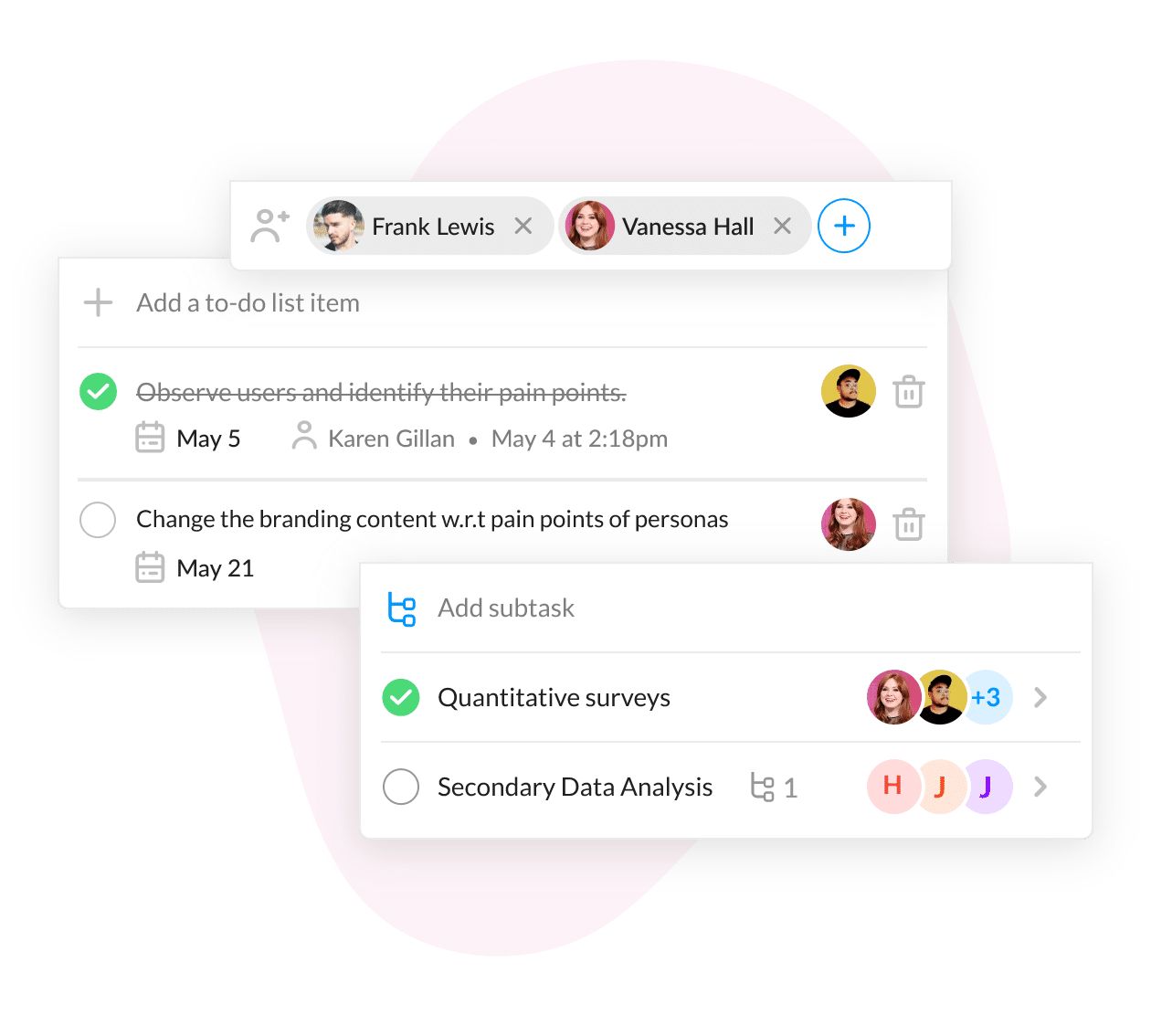
You can assign tasks to specific people and add due dates. Planner also supports labels, checklists, priorities, attachments, and task notes.
Imagine a website refresh with twenty tasks. The board can show who owns each item and whether it is not started, in progress, or completed.
Track progress by status
Planner offers visual status tracking through task categories and progress indicators. You can filter and group tasks to focus on a particular person or stage.
That view answers questions such as “What is late?” or “Which tasks belong to the design team?” It does not fully answer, “Which delay will move the launch date?”
Use calendar-style planning when available
Planner can provide calendar or schedule views for date-based work. These views help you spot crowded days and approaching deadlines.
A calendar differs from a Gantt chart because it usually emphasizes dates and tasks. A Gantt-style timeline adds duration bars, sequencing, and dependency relationships.
What Premium Planner Adds
Premium Planner capabilities are designed for projects that need more structured scheduling. The exact feature set depends on your Microsoft license and the plan configuration.
Timeline scheduling
A Timeline view places tasks across a horizontal time scale. You can see overlapping work, gaps, long activities, and important deadlines.
For example, a product launch may include research in April, development from May through June, testing in July, and release preparation in August.
Task dependencies
Premium planning can connect tasks with relationships. If development depends on approved designs, the timeline can represent that sequence.
This is valuable when a small change affects many later activities. You can review the chain instead of checking every task manually.
Advanced scheduling
More advanced planning helps you manage task duration, start dates, finish dates, and schedule changes. The timeline becomes a working plan rather than a static overview.
For instance, moving a testing activity may require a corresponding adjustment to launch preparation. A structured schedule makes that impact easier to evaluate.
Project-level planning
Premium plans may support broader planning features than a basic task board. These features help project leads manage phases, dependencies, and delivery milestones in one place.
That makes the premium experience more suitable for software releases, construction planning, campaigns, and cross-functional initiatives.
You might be wondering: does premium Planner replace Microsoft Project completely? It depends on the complexity of your work.
Planner may be enough for teams that need practical scheduling and collaboration. Microsoft Project remains more suitable for detailed resource planning, portfolio management, and advanced project controls.
How to Check Whether Your Planner Has a Gantt-Style Timeline
You can check your Planner environment in a few minutes. The goal is to identify whether your plan includes timeline scheduling and dependencies.
- Open the relevant plan. Choose the project plan you want to review in Microsoft Planner.
- Inspect the available views. Look for options such as Board, Grid, Schedule, Charts, or Timeline.
- Open Timeline if it appears. Review whether tasks display as bars across dates.
- Check task relationships. Open a task and look for dependency or predecessor controls.
- Review your license. Ask your Microsoft 365 administrator which Planner capabilities your subscription includes.
- Test a small project. Add three tasks, assign dates, and connect their sequence before moving a major workflow.
But here’s the truth: seeing a Timeline option does not automatically mean your setup supports every Project feature. Your organization’s license, permissions, and Microsoft rollout can affect what appears.
Testing a small plan prevents confusion. It also shows whether your team can maintain dates and dependencies consistently.
Basic Planner Versus a Gantt Chart
A Planner board and a Gantt chart solve different planning problems. The board emphasizes workflow status, while the timeline emphasizes time and sequence.
| Planning need | Basic Planner board | Gantt-style timeline |
|---|---|---|
| Assign work | Strong | Strong |
| Track status | Strong | Available through task progress |
| View task duration | Limited | Strong |
| Show dependencies | Limited or unavailable | Strong in supported premium plans |
| See schedule impact | Limited | Much clearer |
| Manage complex resources | Limited | Varies by Planner or Project plan |
Consider a simple content campaign. A board may show that research, writing, design, and approval are all in progress.
A timeline shows something more useful: design cannot finish before the draft exists, and publishing cannot begin before approval. That relationship changes how you manage the campaign.
When Planner’s Board View Is Enough
You may not need a Gantt chart for every project. A board is often enough when tasks are independent, deadlines are flexible, and the team mainly needs accountability.
Good fits for a board
- Weekly team planning
- Routine marketing activities
- Support request tracking
- Small event preparation
- Personal and departmental task management
- Work with limited task dependencies
For example, a customer support team can place requests into New, Investigating, Waiting, and Resolved buckets. The order of one request rarely controls another.
Adding a complex timeline could create more maintenance than value. In that situation, Planner’s simple workflow keeps attention on execution.
When You Need a Gantt-Style Schedule
A timeline becomes more important when your project has a fixed launch date, many dependent activities, or several teams working in sequence.
Signs that a timeline will help
- One delayed task can postpone several later tasks.
- Your project includes formal milestones.
- Multiple teams share the same delivery date.
- Activities run for days or weeks rather than hours.
- You need to compare planned dates with actual progress.
- Stakeholders ask for a visual schedule.
Imagine an office relocation. Facilities, security, technology, suppliers, and employees all have connected responsibilities.
A board can track the tasks. A Gantt-style schedule can show whether network installation will finish before equipment setup and staff access.
The best part? You do not need to turn every task into a complex project schedule.
Use a board for daily execution and a timeline for milestones, dependencies, and delivery control. The two views can support different planning habits.
Common Ways to Work Around the Limitation
If your current Planner plan lacks a native Gantt view, you still have practical options. Choose the lightest approach that solves the scheduling problem.
Upgrade to a premium Planner experience
This is the most direct option when your team already works inside Microsoft 365. You keep Planner’s task-based workflow while adding more structured scheduling.
Before upgrading, confirm which features matter. A timeline alone may not solve resource conflicts or portfolio reporting.
Use Microsoft Project for complex schedules
Microsoft Project is built for deeper project management. It can be a better fit when you need detailed dependencies, resource planning, baselines, or portfolio oversight.
The trade-off is greater planning complexity. Your team may need training and stronger schedule ownership.
Combine Planner with a separate planning platform
Some teams keep everyday tasks in Planner and manage major schedules elsewhere. This can work, but duplicated updates create risk.
If the same task exists in two places, decide which platform controls dates and status. Otherwise, people may follow different versions of the plan.
Build a lightweight schedule manually
For a small project, you can create a simple date-based view using existing Microsoft 365 tools. This may help with a one-time event or short campaign.
Manual planning becomes fragile as dependencies grow. Repeated date changes can consume time and increase the chance of missed updates.
Natural Microsoft Planner Gantt Chart Solution: ONES.com

Value Proposition
ONES.com combines project management and knowledge management in one platform powered by ONES Assistant. ONES Project provides structured project planning for teams that need more than a basic task board.
It can serve as a Jira alternative while supporting cloud, on-premise, private cloud, and air-gapped deployments. ONES Project and ONES Wiki are sold separately.
Core Capabilities
- Scattered schedules → Timeline-based project planning → See task durations, milestones, and delivery sequences in a clearer visual plan.
- Hidden task relationships → Dependency management → Connect related activities so schedule risks become easier to identify.
- Rigid workflows → Custom workflows → Adapt stages to software development, marketing, operations, or approval-heavy work.
- Inconsistent task details → Custom fields → Capture priorities, teams, risk levels, release versions, or other project information.
- Manual status reporting → Built-in reporting → Review progress and project signals without assembling every update by hand.
- Plugin-heavy project setups → Native project capabilities → Reduce reliance on multiple add-ons for workflows, sprint management, reporting, and automation.
- Complex sprint coordination → Sprint management → Plan iterations, assign work, and review progress within a structured delivery cycle.
- Repetitive administration → Automation → Trigger routine actions when tasks change status, receive assignments, or reach key stages.
- Restricted deployment requirements → Self-hosted options → Run the platform on-premise, in a private cloud, or in an air-gapped environment.
Application Scenarios
Software release planning: A development team can connect requirements, coding, testing, review, and deployment. Sprint planning handles short cycles, while timeline planning gives leadership a broader release view.
Approval-heavy campaigns: A marketing team can create stages for briefing, drafting, legal review, design, approval, and publication. Custom fields can identify campaign owners and risk levels.
Restricted-network project work: A regulated team can use an on-premise or air-gapped deployment. Full feature parity between cloud and self-hosted versions helps the team retain core planning capabilities.
ONES.com offers a free plan for up to 30 seats. It supports four deployment choices: Cloud, On-Premise, Private Cloud, and Air-gapped.
If your main need is a Microsoft-native task board, Planner may remain sufficient. If you need a more structured Jira alternative with native project capabilities and deployment flexibility, ONES Project is worth evaluating.
Common Challenges and Practical Solutions
Challenge: You cannot find the Timeline view
Solution: Check your plan type, account permissions, and Microsoft 365 rollout status. Ask your administrator whether premium Planner capabilities are included.
Challenge: Your timeline becomes outdated
Solution: Assign schedule ownership. Review dates during a weekly project meeting and update dependencies whenever scope changes.
Challenge: The team confuses a calendar with a Gantt chart
Solution: Use the calendar for appointments and deadline awareness. Use a timeline for duration, sequence, dependencies, and milestone planning.
Challenge: Too many tasks make the schedule difficult to read
Solution: Show major activities and milestones at the project level. Keep small execution details in the board or task view.
Challenge: Two planning tools create conflicting dates
Solution: Choose one system as the schedule authority. Link or summarize information elsewhere without maintaining duplicate dates manually.
FAQs About Planner and Gantt Charts
Can I create a Gantt chart in basic Microsoft Planner?
Basic Planner generally does not provide a full native Gantt chart. You can organize tasks, add dates, and view work through board or calendar-style layouts. Those views help with accountability and deadlines, but they may not show task duration or dependencies in a traditional timeline. Check your organization’s current Planner plan because Microsoft continues to change how premium capabilities appear.
Which Microsoft Planner plan includes a timeline?
Premium Planner experiences provide a Timeline view with Gantt-style scheduling. The exact name and availability can depend on your Microsoft subscription and tenant configuration. Open a plan and check for Timeline, dependency, and scheduling options. If they do not appear, ask your administrator which Planner or Project license you have.
Is Planner the same as Microsoft Project?
Planner and Microsoft Project overlap, but they serve different levels of project complexity. Planner is designed for collaborative task management and team coordination. Premium Planner adds more structured scheduling. Microsoft Project typically goes further with advanced planning, resource management, portfolio oversight, and formal project controls.
Can Planner show task dependencies?
Dependency support is associated with premium Planner scheduling capabilities rather than the basic board experience. When available, dependencies can show which tasks must happen before others. For example, testing can depend on development completion. Check your plan’s task controls because available features vary by subscription.
Should I use a Gantt chart for every project?
No. A Gantt chart helps when timing, sequence, and dependencies affect delivery. It may be unnecessary for independent tasks, recurring work, or a small team’s weekly planning. Start with a board when accountability is the main concern. Add timeline planning when delays, milestones, or cross-team coordination become difficult to manage.
Conclusion
Microsoft Planner does not offer the same Gantt-style experience in every plan. Basic Planner focuses on boards, assignments, buckets, and progress, while premium capabilities add timeline scheduling and dependencies.
Here’s the practical takeaway: use the board for everyday execution, and use a timeline when task duration, sequencing, and milestone control matter.
If your current plan lacks the required view, check your license before changing platforms. For more advanced project management, Microsoft Project or an alternative such as ONES Project may provide a better fit.
The problem is usually not the absence of one visual feature. It is the difficulty of understanding how work connects. Choose the simplest planning method that makes those connections clear.