Does Asana Have Gantt Charts? A 2026 Feature Guide & FAQ
Planning a complex project without a Gantt view can make deadlines feel disconnected. Tasks sit in separate lists, dependencies stay hidden, and a small delay can quietly affect the entire delivery plan.
That uncertainty becomes frustrating when stakeholders ask which milestone moves, who is affected, or whether the team can still meet the launch date. You may spend more time rebuilding schedules than managing the work.
But here's the truth: Asana does have Gantt chart functionality through its Timeline and Gantt-style project views. The exact features depend on your plan and workspace setup.
This guide explains how Asana’s timeline planning works, which features matter, what limitations to consider, and when another project management platform may fit better.
Does Asana Have Gantt Charts?
Yes, Asana has Gantt chart functionality through its Timeline view and Gantt-style project planning features. You can map tasks across dates, connect dependencies, track milestones, and see how schedule changes affect the wider project.
Asana may label the experience as Timeline rather than presenting it as a traditional desktop Gantt chart. The result serves a similar purpose: visualizing work across a calendar, showing task duration, and coordinating dependent activities.
Plan availability can change, so check your current Asana subscription before promising a specific feature to your team. Some advanced planning features may require a paid tier.
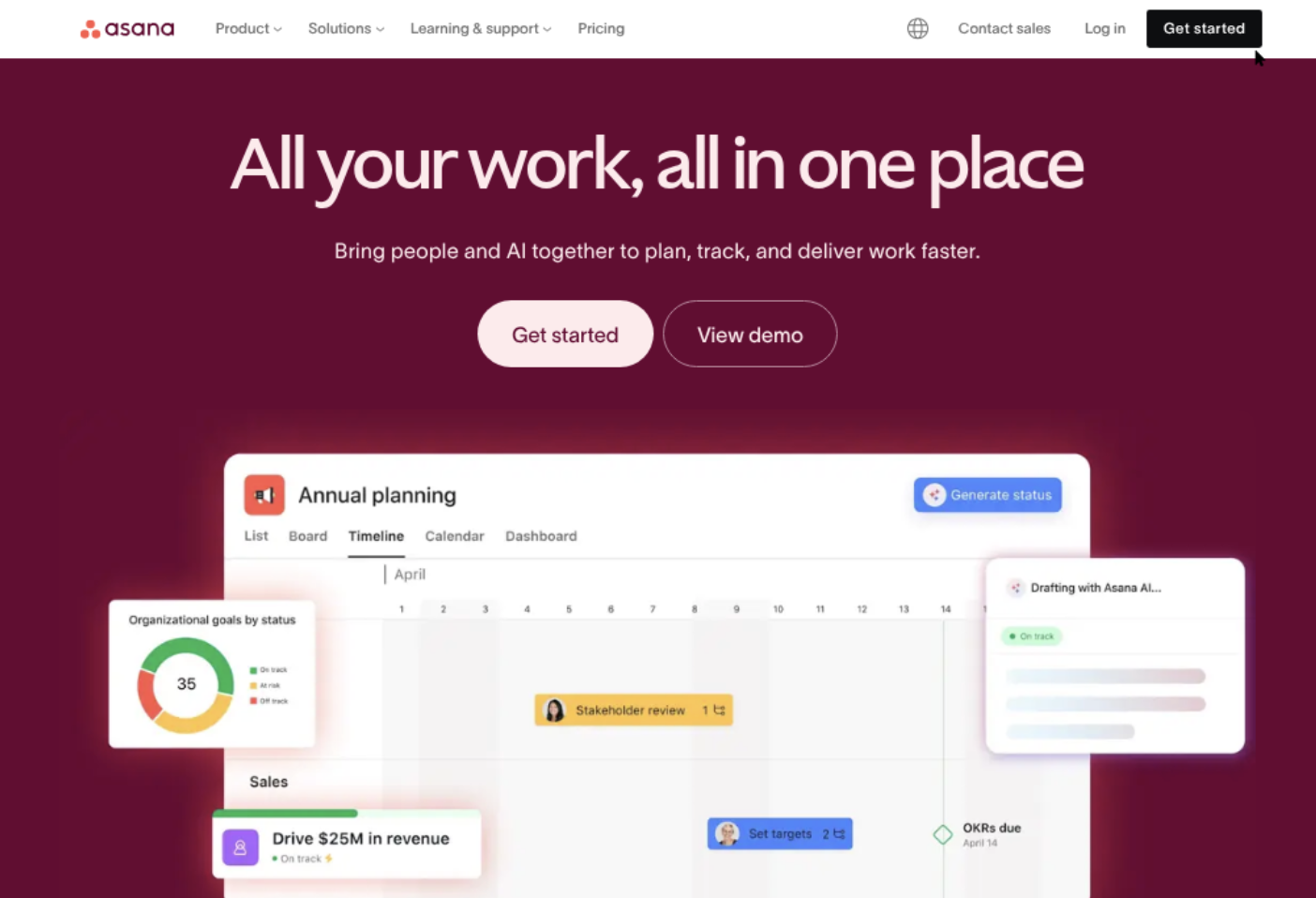
What You Can Do in Asana’s Timeline or Gantt View
- Place tasks across a calendar timeline.
- Set start dates and due dates.
- Adjust task duration by extending or shortening a bar.
- Create task dependencies.
- Identify milestones and major delivery points.
- Spot overlapping work and scheduling conflicts.
- Move connected tasks when an earlier activity changes.
- Review project progress from a visual schedule.
For example, imagine a website launch with research, design, development, testing, and release tasks. A list view shows each activity separately. A Gantt-style view shows the order, overlap, and timing in one place.
Here's why: schedule problems usually appear between tasks. A visual timeline makes those relationships easier to notice before they become delivery problems.
How to Create a Gantt-Style Project Timeline in Asana
You can create a Gantt-style schedule by starting with a project, adding tasks, assigning dates, and connecting dependent activities. The basic workflow is straightforward.
- Create or open a project. Choose a project that has a defined outcome, such as launching a website or releasing a product update.
- Add the major tasks. Break the work into activities with clear owners and measurable results.
- Add start and due dates. Give each task a realistic duration instead of adding only a final deadline.
- Open Timeline or Gantt view. Use the visual schedule to review when each activity begins and ends.
- Connect dependencies. Link tasks that must happen in a specific order, such as testing after development.
- Add milestones. Mark events such as design approval, beta release, or production launch.
- Review workload and conflicts. Look for overlapping deadlines, idle periods, and overloaded contributors.
- Update the schedule regularly. Adjust dates when work changes, then review downstream effects.
Example: A Product Launch Schedule
Suppose your team plans a product launch on September 30. Research runs from August 1 to August 7. Design follows from August 8 to August 18.
Development starts on August 19 and ends on September 12. Testing runs from September 13 to September 22, followed by launch preparation.
In a visual timeline, the relationship is clear. If development slips by four days, testing may also move unless the team finds another solution.
How Dependencies Improve the Schedule
A dependency tells Asana that one task relates to another task’s timing. For example, “Approve campaign copy” can precede “Publish campaign landing page.”
This connection helps you see which activities can move independently and which ones may create a chain reaction. It also gives project managers a stronger basis for schedule conversations.
The best part? You can often identify a risky dependency before the team spends weeks working around it.
Which Asana Plans Include Gantt-Style Planning?
Asana’s planning features vary by subscription and may change as its product evolves. Your workspace may have access to Timeline or Gantt-style planning through a paid plan.
Check the plan comparison inside your Asana workspace before building a planning process around advanced scheduling. Availability may also depend on administrator settings or the project type.
| Planning need | What to check |
|---|---|
| Basic visual scheduling | Whether your plan includes Timeline or Gantt-style project views |
| Task dependencies | Whether dependencies are available for your workspace and project |
| Milestone tracking | Whether milestones can be added and displayed in the selected view |
| Advanced schedule control | Whether your plan supports features such as critical path or workload planning |
| Team-wide adoption | Whether every relevant contributor can access the needed project view |
You might be wondering: why does plan availability matter so much? A schedule is only useful when the people maintaining it can access the same planning tools.
For instance, a project manager may see a detailed timeline while contributors rely on a simpler task list. That difference can create inconsistent updates and missed changes.
Asana Timeline Compared With a Traditional Gantt Chart
Asana’s Timeline view covers many common Gantt chart needs, especially for teams already managing tasks in Asana. It connects scheduling with assignments, comments, status updates, and team collaboration.
A traditional Gantt application may offer deeper schedule engineering. This can include more advanced baseline tracking, resource capacity planning, critical path analysis, or detailed portfolio controls.
| Capability | Asana Timeline or Gantt-style view | Specialized Gantt software |
|---|---|---|
| Task dates | Strong for everyday project planning | Usually strong |
| Dependencies | Available for connected project planning | Usually more configurable |
| Team collaboration | Built into the broader work environment | May require connected collaboration tools |
| Critical path analysis | Availability may depend on the plan and current features | Often a core scheduling feature |
| Resource planning | May require additional planning features | Often deeper in enterprise-focused products |
| Ease of adoption | Convenient for existing Asana teams | Can require more scheduling training |
For a marketing campaign, product sprint, or moderate implementation project, Asana may provide enough visual planning. For construction-style scheduling or heavily constrained programs, specialized software may offer more control.
Let me explain: the right choice depends on how much schedule precision you need. A simple timeline can be better than a powerful system nobody updates.
Important Asana Gantt Features to Evaluate
Seeing task bars on a calendar is only the beginning. Before adopting Asana for serious schedule management, evaluate how each feature supports your actual workflow.
Dependencies
Dependencies clarify which tasks rely on earlier work. They are especially valuable when several teams contribute to one outcome.
Ask whether your team can create, edit, and review dependencies easily. If links become difficult to maintain, the visual schedule may lose accuracy.
Milestones
Milestones represent important events rather than long periods of work. Examples include regulatory approval, customer beta access, and public launch.
Use milestones sparingly. Too many markers can make a project timeline difficult to scan.
Progress Tracking
A schedule should show more than planned dates. You also need a practical way to identify completed, active, delayed, and blocked work.
Compare the visual timeline with task status and ownership. A green-looking schedule can still hide unfinished work if contributors do not update task progress.
Schedule Changes
Projects rarely follow the original plan. A strong timeline helps you test the effect of moving a task before you communicate a revised deadline.
For example, moving an approval task by three days may shift design handoff, development, testing, and launch preparation. The timeline makes that chain visible.
Reporting and Sharing
Executives usually want milestone health and delivery risk. Contributors need task-level detail. Clients may need a simplified view.
Evaluate whether Asana gives each audience enough visibility without exposing unnecessary internal activity.
When Asana’s Gantt View May Not Be Enough
Asana can work well for collaborative project planning, though some teams need deeper scheduling controls. The gap usually appears when projects contain many constraints or require formal schedule governance.
Large Programs With Many Dependencies
A program involving dozens of teams may produce a dense dependency network. At that scale, finding the activities that control the final delivery date can become difficult.
A specialized scheduling platform may offer stronger critical path analysis and schedule baselines for this situation.
Detailed Resource Capacity Planning
Project dates do not show whether a person has enough available time. One designer may appear on three parallel tasks, even though those assignments cannot realistically overlap.
If capacity planning is central to your work, evaluate workload management alongside the timeline view.
Strict Baseline Management
Some organizations need to compare the current schedule with an approved original plan. This creates a clear record of schedule variance.
If formal baseline controls matter, ask whether Asana provides the level of historical comparison your governance process requires.
Complex Financial or Contractual Scheduling
Infrastructure, engineering, and contract-heavy programs may connect schedule changes with payments, compliance events, or external commitments.
In those cases, a general collaboration platform may need support from specialized scheduling or planning systems.
Project Planning Solution: ONES.com

Value Proposition
ONES.com combines project management and knowledge management in one platform, with AI support through ONES Assistant. ONES Project is a Jira alternative with timeline, sprint, workflow, and reporting capabilities.
Teams can buy ONES Project and ONES Wiki separately. The platform supports Cloud, On-Premise, Private Cloud, and Air-gapped deployments, with feature parity between cloud and self-hosted versions.
Core Capabilities
Disconnected planning across project and knowledge work
Pain: Teams often manage schedules in one place and planning guidance somewhere else.
ONES capability: ONES.com brings project management and knowledge management together, while ONES Project handles task planning and delivery workflows.
Result: Contributors can connect execution details with the operational guidance they need.
Limited control over task relationships
Pain: A simple timeline may show dates without giving teams enough control over project relationships.
ONES capability: ONES Project supports Jira-compatible workflows, dependencies, custom workflows, custom fields, and sprint management.
Result: Teams can adapt the planning structure to different delivery methods and project types.
Manual reporting work
Pain: Project managers may spend hours collecting status updates before a review meeting.
ONES capability: Built-in reporting helps teams monitor progress, workload signals, and delivery information within the project environment.
Result: Reviews can focus more on decisions and less on assembling updates.
Plugin-heavy project setups
Pain: Adding separate extensions for planning, reporting, and workflow automation can increase administration.
ONES capability: ONES Project includes native reporting, custom workflows, custom fields, sprint management, and automation.
Result: Teams may reduce the number of plugins required for common project operations.
Restricted-network requirements
Pain: Some organizations cannot place project information in a public cloud environment.
ONES capability: ONES.com supports On-Premise, Private Cloud, and Air-gapped deployments in addition to Cloud.
Result: Teams can select an environment that fits internal security and network constraints.
Inconsistent experience between hosted and self-managed environments
Pain: Moving from cloud software to self-hosted deployment can sometimes remove important capabilities.
ONES capability: ONES.com provides full feature parity between its cloud and self-hosted versions.
Result: Deployment decisions have less impact on the available project functionality.
Difficulty moving from familiar Jira workflows
Pain: Teams may hesitate to change platforms when their work depends on established issue and approval processes.
ONES capability: ONES Project is positioned as a Jira alternative and supports Jira-compatible workflows.
Result: Teams can evaluate a transition without redesigning every process from scratch.
Small teams testing a broader platform
Pain: A project platform can be difficult to evaluate when the trial group is too small or access is heavily restricted.
ONES capability: ONES.com offers a free plan for up to 30 seats.
Result: A small team can test project planning and collaboration before considering wider adoption.
Application Scenarios
Software release planning: A development team can combine sprint management, dependencies, custom workflows, and reporting for a release schedule. Product guidance can live in ONES Wiki.
Restricted-network engineering: An engineering organization can use an On-Premise or Air-gapped deployment when public cloud access is unsuitable. The team still retains the platform’s project capabilities.
Cross-functional campaign delivery: Marketing, design, and operations teams can use custom fields and automated workflows to move work from planning through approval and launch.
Common Challenges With Asana Gantt Planning
Challenge: Your timeline becomes outdated
Why it happens: Contributors update task status but leave dates unchanged after delays.
Practical solution: Add schedule review to your weekly meeting. Ask which dates changed, why they changed, and which connected tasks need attention.
Challenge: The chart contains too much detail
Why it happens: Teams add every small action to the same high-level project view.
Practical solution: Keep the main timeline focused on milestones, work packages, and schedule-driving tasks. Use smaller task groups for daily execution.
Challenge: Dependencies do not reflect reality
Why it happens: Teams connect tasks because they seem related, even when work can proceed in parallel.
Practical solution: Create a dependency only when one activity genuinely affects another activity’s start or finish.
Challenge: The plan ignores team capacity
Why it happens: Calendar dates describe timing, while assignments describe responsibility. Neither automatically proves that the workload is realistic.
Practical solution: Review each person’s active assignments before approving the schedule. Move work when one contributor carries several urgent tasks.
Challenge: Stakeholders interpret the timeline differently
Why it happens: One person sees task completion, while another focuses on milestone dates.
Practical solution: Define what each status means and explain whether dates represent commitments, estimates, or target windows.
FAQs
Is Asana the same as a traditional Gantt chart?
Asana’s Timeline and Gantt-style views provide many familiar functions, including task bars, dates, dependencies, and milestones. The experience remains connected to Asana’s broader collaboration features.
A specialized Gantt product may offer deeper controls for critical path analysis, resource capacity, baselines, and complex schedule governance. For everyday team planning, Asana may cover the essential visual scheduling needs.
Can you add dependencies in Asana’s timeline?
Yes, Asana supports task dependencies for connecting work that follows a particular order. For example, testing can depend on development completion, while publishing can depend on final approval.
After creating those relationships, review them whenever dates change. A dependency is useful only when it reflects a real delivery constraint rather than a loose connection between related tasks.
Does every Asana plan include Gantt functionality?
Plan availability can differ, and Asana may change which subscription tiers include Timeline or Gantt-style features. Your workspace settings may also affect access.
Check the current plan details inside your account before designing a team process around advanced scheduling. Confirm access for project managers and contributors who need to maintain the timeline.
Can Asana show the critical path?
Critical path availability may depend on the current Asana plan and feature configuration. Even when a dedicated critical path view is unavailable, dependencies can still help you identify tasks that control downstream work.
For highly constrained programs, compare Asana with specialized scheduling platforms. Look for baseline comparison, resource planning, and advanced schedule analysis.
What is a good alternative for teams that need deeper project control?
ONES Project is a Jira alternative that supports custom workflows, custom fields, sprint management, automation, and built-in reporting. It is part of ONES.com, which also includes knowledge management through ONES Wiki.
ONES.com supports Cloud, On-Premise, Private Cloud, and Air-gapped deployments. This makes it worth evaluating when teams need flexible workflows or restricted-network deployment options.
Conclusion
Asana does have Gantt-style planning through its Timeline and related scheduling features. You can map task durations, connect dependencies, mark milestones, and review how delays affect a project.
The right fit depends on your scheduling complexity. Asana can suit collaborative campaigns, product work, and moderate project plans. Specialized platforms may be stronger for formal baselines, complex resource planning, or tightly constrained programs.
But here's the truth: a timeline only helps when your team maintains accurate dates, meaningful dependencies, and realistic assignments.
Start with a small project. Add the major tasks, connect genuine dependencies, and review the schedule every week. If your needs expand into custom workflows, advanced reporting, or restricted deployment, evaluate platforms such as ONES.com alongside Asana.