Does Asana Have a Gantt Chart? Features, Limits & Tips
Asana can show your project on a Gantt-style timeline, but the experience may differ from dedicated Gantt software. You may find dependencies, milestones, and task dates, then discover that advanced planning controls depend on your subscription. That uncertainty makes it harder to decide whether Asana fits your project before you invest time setting everything up. But here's the truth: Asana does have Gantt chart functionality through its Timeline view. The bigger question is whether its planning depth matches your team’s needs. Here, you’ll learn where to find the view, what it can do, which limits matter, and how to build a clearer schedule. You’ll also see when another project management platform may be a better fit.
Does Asana Have a Gantt Chart?
Asana has Gantt chart functionality through its Timeline view. It lets you arrange tasks across a calendar, connect dependencies, set milestones, and see how schedule changes affect your project.
Asana may use the term Timeline more often than “Gantt chart.” In practice, the view serves a similar purpose: tasks appear as horizontal bars across dates, while dependencies show relationships between activities.
You can use this view to answer practical questions quickly:
- Which tasks are scheduled for each week?
- Which activities must finish before another task begins?
- Where could a delay affect the launch date?
- Which milestones still need attention?
- Are several people overloaded during the same period?
Here's why: a task list shows what needs to happen, while a timeline shows how the work fits together. That visual relationship helps you spot schedule risks earlier.
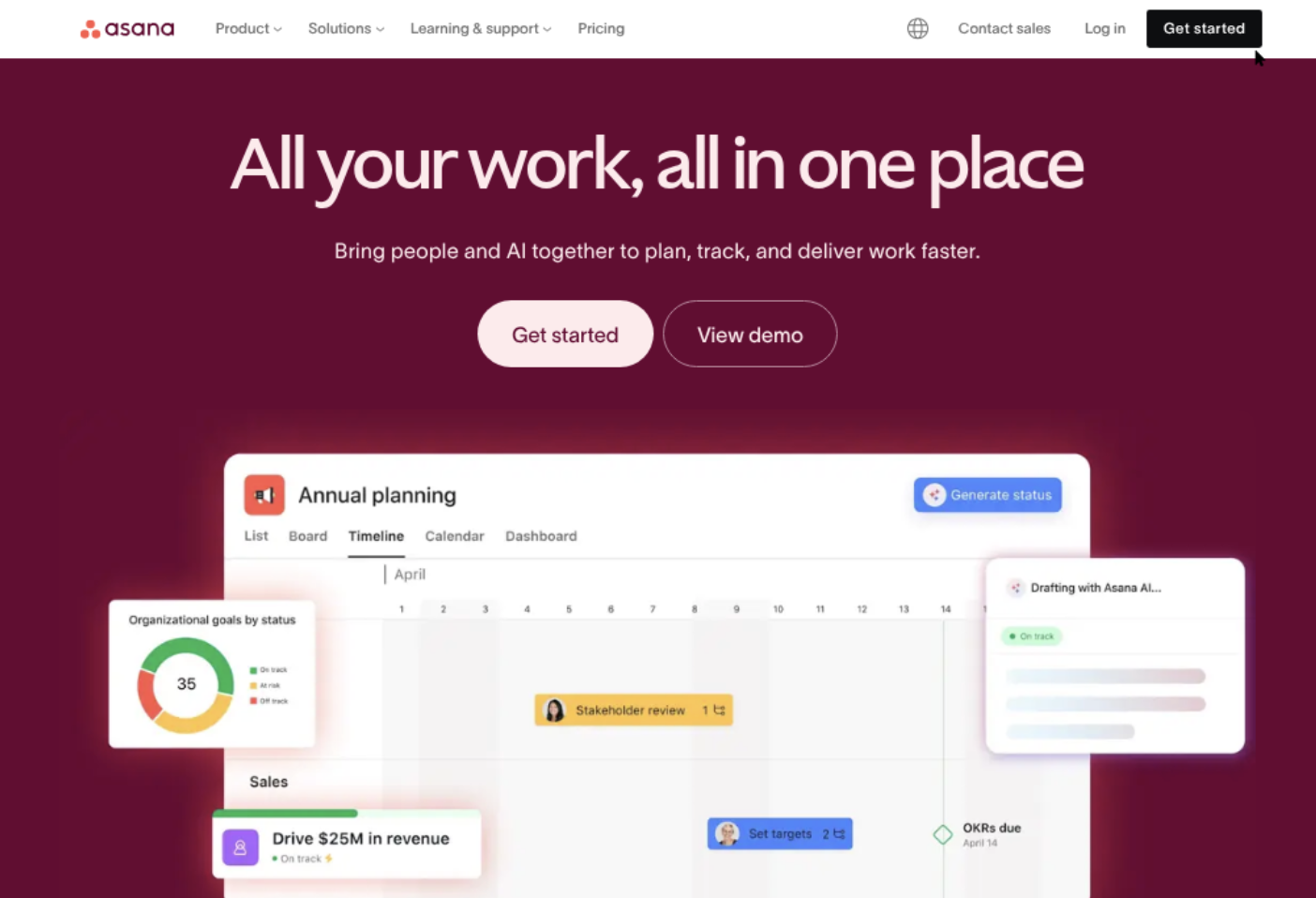
How Asana’s Timeline Works
Open a project and switch to the Timeline view. You can then place tasks on a calendar by assigning start and due dates.
Each task appears as a bar. The bar length represents the scheduled duration, so a two-day task looks shorter than a three-week implementation phase.
You can also group or organize work around sections, custom fields, milestones, and task relationships. For example, a product launch may include research, design, development, testing, and release preparation.
When one activity depends on another, you can connect them with a dependency. If testing cannot begin until development ends, the relationship becomes visible on the project timeline.
Key Gantt-Style Features
| Feature | What it helps you do |
|---|---|
| Timeline view | See project tasks arranged across dates. |
| Task durations | Show how long each activity should take. |
| Dependencies | Connect tasks that must happen in a particular order. |
| Milestones | Mark important dates, approvals, or delivery points. |
| Task scheduling | Move work to reflect revised priorities or deadlines. |
| Project sections | Organize phases such as planning, execution, and launch. |
| Calendar planning | Compare scheduled work with important dates. |
How to Create a Gantt-Style Timeline in Asana
- Create or open a project. Start with a project that contains the work you want to schedule. A product launch, website redesign, or event plan works well.
- Add tasks and project phases. Create specific tasks instead of broad items such as “finish website.” Use clearer entries like “approve homepage layout” or “run accessibility checks.”
- Assign owners. Give every task a responsible person. A timeline becomes more useful when you can see both the schedule and accountability.
- Add start dates and due dates. A due date alone shows when work should finish. A start date also shows duration, which makes the schedule easier to evaluate.
- Open Timeline view. Choose the project’s Timeline option to see tasks as bars across the calendar.
- Arrange task order. Move tasks into a sensible sequence. Place planning before execution, and execution before review or release.
- Add dependencies. Link tasks when one activity relies on another. For example, “approve campaign message” should precede “schedule paid promotion.”
- Mark milestones. Use milestones for events such as sign-off, beta release, contract approval, or public launch.
- Review workload and timing. Look for overlapping deadlines, long idle periods, and tasks that create a bottleneck.
- Update the schedule regularly. A timeline loses value when dates remain unchanged after priorities shift. Review it during weekly planning.
The best part? You do not need to plan every minor activity on the timeline. Keep the visual schedule focused on work that affects sequencing, deadlines, or major coordination.
What Asana’s Gantt View Can and Cannot Do
Asana’s Timeline view works well for teams that need a clear project roadmap inside a broader task management system. It connects planning with assignments, comments, status updates, and everyday work.
However, the experience may feel lighter than specialized Gantt software. The difference becomes clearer when your project requires advanced baselines, detailed capacity planning, or complex portfolio scheduling.
Where Asana Performs Well
Asana is useful when your team wants a simple visual schedule without maintaining a separate planning system. A marketing team can coordinate copywriting, creative review, legal approval, and campaign launch in one project.
Dependencies are especially valuable for cross-functional work. If a developer cannot begin integration until an API review finishes, the relationship is visible to everyone involved.
Milestones also give stakeholders a quick progress signal. A leadership team may care more about “pilot approved” than the dozens of individual preparation tasks behind it.
Limits to Consider
Access to Timeline and advanced planning features can depend on your Asana subscription. Plan availability may change, so check Asana’s current plan details before committing to a particular workflow.
Some teams may also want capabilities that are more common in dedicated project scheduling tools. Examples include saved baselines, automatic critical path calculations, detailed resource forecasting, and deeper portfolio-level planning.
Asana’s flexibility can create another challenge. Teams may build different conventions for sections, task names, dates, and dependencies. Without shared rules, the timeline becomes difficult to interpret.
You might be wondering: does a visual timeline automatically make a reliable project plan? No. The quality still depends on realistic estimates, clear ownership, and regular updates.
Timeline View Compared With a Traditional Gantt Chart
Asana’s timeline covers the central Gantt use case: displaying tasks over time and showing relationships between them. Traditional Gantt software may provide more scheduling controls for complex programs.
| Planning need | Asana Timeline | Dedicated Gantt software |
|---|---|---|
| Simple project roadmap | Strong fit for many teams | Usually available |
| Task dependencies | Supported | Usually supported with more advanced controls |
| Milestone tracking | Supported | Supported |
| Team collaboration | Strong task-centered collaboration | Varies by product |
| Baseline comparison | May be limited compared with specialist tools | Often more robust |
| Resource forecasting | May require additional planning practices | Often more detailed |
| Portfolio scheduling | Depends on plan and configuration | Often a core capability |
For example, a small creative campaign may need five phases and three milestones. Asana can handle that structure comfortably.
A construction program with hundreds of linked activities, shifting crews, contractual baselines, and multiple work packages may need more specialized scheduling controls.
Tips for Building a More Useful Asana Timeline
Use Specific Task Names
“Prepare launch” is too broad to schedule accurately. Split it into tasks such as “approve launch audience,” “write announcement,” and “review tracking links.”
Specific tasks make durations easier to estimate. They also show exactly which activity is late when a milestone slips.
Keep Dependencies Meaningful
Link tasks when the relationship affects the schedule. If every task connects to every other task, the project becomes difficult to read.
For example, connect “complete security review” to “release candidate.” You probably do not need a dependency between “draft internal message” and “order team lunch.”
Use Milestones for Decisions
A milestone should represent a meaningful event. Good examples include executive approval, customer acceptance, testing completion, or production release.
Milestones help you communicate progress without forcing every stakeholder to inspect individual tasks.
Review Dates During a Weekly Meeting
Set aside ten minutes each week to review overdue work, upcoming dependencies, and changes to the final milestone.
When a task moves, inspect the tasks that rely on it. That simple habit prevents outdated dates from spreading across the project.
Separate Planning From Status Reporting
A timeline explains when work should happen. Status fields and progress updates explain what is happening now.
Use both views together. A project can be on schedule while a key task is blocked, or it can appear busy while the final milestone quietly slips.
When Asana May Not Be Enough
Asana may become less suitable when scheduling complexity grows faster than the team’s ability to maintain the plan.
Consider another approach if you need detailed resource allocation across many projects. For example, an agency managing 30 client engagements may need a central capacity view for designers, developers, and analysts.
You may also need a stronger alternative when your team works in restricted environments or requires self-hosted deployment. Security, governance, and installation requirements can influence the decision as much as visual planning.
Here's a practical test: build one representative project before moving everything. Include real dependencies, approval stages, recurring work, and the reporting your managers need.
If the timeline remains clear after that test, Asana may suit your workflow. If the plan requires extensive workarounds, compare platforms before standardizing.
Project Planning Solution: ONES.com

Value Proposition
ONES.com combines project management and knowledge management in one platform, with ONES Project serving as a Jira alternative. It may suit teams that need structured planning, custom workflows, and self-hosted deployment choices.
ONES Project is sold separately from ONES Wiki. You can choose the project management product without adopting the knowledge management product.
Core Capabilities
- Need a clearer alternative to a basic timeline? ONES Project supports Jira-compatible workflows, helping teams organize work through familiar issue and project patterns. The result is a more structured planning process for teams moving beyond simple task lists.
- Need to manage changing project stages? Custom workflows let you define statuses and transitions for your process. That makes approval-heavy work easier to control.
- Need fields that match your project? Custom fields let you track details such as risk level, release train, customer segment, or compliance status. Teams can report on information relevant to their work.
- Need sprint planning alongside longer schedules? Sprint management connects iterative delivery with broader project coordination. Product teams can plan short cycles while keeping major milestones visible.
- Need fewer add-ons? Built-in reporting and automation reduce the need to assemble separate plugins for common planning and tracking requirements. This can simplify administration.
- Need consistent reporting? Native reporting helps teams monitor progress, workload, status, and delivery trends. Managers gain a regular view without manually combining updates.
- Need deployment control? ONES.com supports Cloud, On-Premise, Private Cloud, and Air-gapped deployments. Teams can select an operating model that matches their security and infrastructure requirements.
- Need consistent capabilities across environments? ONES.com provides full feature parity between its cloud and self-hosted versions. A team can retain core functionality when deployment requirements change.
Application Scenarios
Software development: A product team can connect backlog items, sprints, dependencies, releases, and custom approval stages. Built-in reporting gives managers a view of delivery progress.
Regulated engineering: An organization with restricted network requirements can use an air-gapped deployment. The team can maintain structured project workflows without moving work into a public cloud environment.
Cross-functional launches: Marketing, product, and engineering teams can use custom fields and shared workflow stages. Each group can track its responsibilities while leadership monitors major outcomes.
Common Challenges and Practical Fixes
Challenge: Timeline Features Are Missing
Why it happens: Your Asana plan may not include the planning view or related capabilities.
What to do: Confirm your current subscription, then test the workflow with a representative project. Compare the upgrade cost with the value of the scheduling features you actually need.
Challenge: The Timeline Looks Overcrowded
Why it happens: The project contains every small action, recurring task, and administrative reminder.
What to do: Keep the timeline focused on schedule-driving work. Track minor actions in the task view while reserving the timeline for phases, dependencies, and milestones.
Challenge: Dates Become Outdated
Why it happens: Team members update task status but forget to adjust dates and related dependencies.
What to do: Make schedule review part of your weekly meeting. When one task changes, inspect every connected activity.
Challenge: Dependencies Do Not Reflect Reality
Why it happens: Teams create relationships based on preference rather than actual work constraints.
What to do: Ask whether the next task truly cannot begin. Keep only dependencies that affect timing, handoffs, approvals, or quality checks.
Challenge: Stakeholders Want Different Views
Why it happens: Executives need milestones, managers need capacity, and specialists need task details.
What to do: Maintain one underlying plan, then present the relevant view to each audience. Avoid creating separate schedules that can drift apart.
FAQs
Is Asana Timeline the same as a Gantt chart?
Asana Timeline provides many core Gantt-style functions, including date bars, durations, dependencies, and milestones. The naming differs, and the feature depth may differ from specialist Gantt software. For straightforward project planning, Timeline can provide the visual schedule you need. Complex programs may require advanced capabilities such as baselines, resource forecasting, or critical path analysis.
How do I find the Gantt view in Asana?
Open the relevant Asana project and look for the Timeline view among the project views. Add task start dates, due dates, and dependencies to create a useful schedule. If Timeline does not appear, check your subscription level and project permissions. Asana changes plan features over time, so current availability should be confirmed in the platform.
Can I add dependencies in Asana?
Yes, Asana supports task dependencies in projects that include the relevant planning capabilities. A dependency shows that one task relies on another task. For example, you can link “approve final design” to “send design to development.” Use dependencies selectively, because excessive links can make the project harder to understand.
Does Asana support milestones?
Yes, you can use milestones to represent significant events in a project. Examples include contract approval, beta launch, inspection completion, and final delivery. Milestones are useful because they summarize progress for stakeholders who do not need to inspect every task. They also make schedule slippage easier to notice.
Is Asana suitable for complex Gantt planning?
It depends on the complexity of your work. Asana can suit teams planning campaigns, product launches, internal programs, and moderate cross-functional projects. You may need a more specialized platform when you manage many linked projects, detailed resource constraints, contractual baselines, or advanced portfolio scheduling. Test a realistic project before making a long-term decision.
Conclusion
Asana does provide Gantt-style planning through its Timeline view. You can schedule tasks, connect dependencies, define milestones, and understand how work fits across a calendar.
Its limits usually appear when you need deeper resource planning, baseline comparisons, complex portfolio scheduling, or deployment control. Your best next step is to test one real project with realistic dates and dependencies.
But here's the truth: a timeline only helps when your team keeps it accurate. Use specific tasks, meaningful relationships, clear milestones, and a short weekly review.
If Asana feels too light for your planning requirements, compare it with a structured Jira alternative such as ONES Project. The right choice is the platform that makes schedules clearer without creating maintenance work your team cannot sustain.