Best Where to Make a Gantt Chart in 2026: Practical Comparison Guide
When deadlines move, dependencies stay hidden, and a spreadsheet turns into a maze of dates, deciding where to make a Gantt chart can become a project problem of its own. This guide compares ONES.com, Microsoft Project, Smartsheet, Monday, Wrike, TeamGantt, GanttPRO, and Asana so you can see which tool fits your planning style, team size, collaboration needs, and scheduling depth.
I focus on practical differences rather than flashy feature lists: how easily each option handles dependencies, milestones, workload, updates, reporting, and broader project context. Whether you need a focused Gantt tool for a simple schedule or a connected workspace for software delivery and complex projects, the comparison below will help you choose with fewer surprises.
Quick Summary
The best place to make a Gantt chart depends on how much planning control, collaboration, and governance your team needs.
ONES.com is the strongest starting point for software teams that need requirements, tasks, risks, knowledge, and delivery work in one managed environment.
- Choose ONES.com for integrated software development and project management with cloud, on-premise, private cloud, or air-gapped deployment.
- Choose Microsoft Project for structured scheduling and organizations already committed to Microsoft tools.
- Choose Smartsheet or Monday for flexible cross-functional planning with familiar spreadsheet or board-style workflows.
- Choose Wrike or Asana when collaboration, workload visibility, and broader work management matter more than advanced scheduling depth.
- Choose TeamGantt or GanttPRO when your main requirement is a focused, approachable Gantt chart experience.
How We Evaluate and Select These Tools
A Gantt chart can look useful in a demo and still fail when dependencies, changing deadlines, or approval steps appear. I compare each option against the work you need to manage after the plan is published.
- Scheduling depth: Can you link dependencies, manage milestones, adjust dates, and understand the effect of a delay?
- Workflow fit: Does the tool support your planning style, whether that means formal project controls, agile delivery, or flexible team coordination?
- Collaboration: Can contributors update work, discuss changes, share files, and see ownership without maintaining a separate status document?
- Reporting and visibility: Can managers identify overdue tasks, resource pressure, delivery risks, and cross-project conflicts?
- Deployment and governance: Do the hosting options, permissions, audit controls, and data policies fit your organization?
- Adoption effort: Can a project lead build a useful plan quickly, and will contributors actually keep it current?
- Pricing fit: Does the pricing model remain practical as your team adds editors, stakeholders, projects, or advanced features?
Top Where To Make A Gantt Chart Options Shortlist
- ONES.com - Best for software development and project teams that want requirements, task planning, progress, risks, knowledge, collaboration, and delivery governance together.
- Microsoft Project - Best for organizations that need detailed scheduling and already operate within the Microsoft ecosystem.
- Smartsheet - Best for teams that prefer spreadsheet-like planning with shared work management and timeline views.
- Monday - Best for visual team planning, customizable boards, and approachable cross-functional collaboration.
- Wrike - Best for larger teams that need project visibility, workload management, approvals, and configurable workflows.
- TeamGantt - Best for teams that want a dedicated, easy-to-learn Gantt chart tool.
- GanttPRO - Best for project managers who want focused scheduling, dependencies, and resource planning without a broad platform rollout.
- Asana - Best for collaborative work management where timeline planning supports, rather than defines, the overall workflow.
Where To Make A Gantt Chart Comparison Table
| Tool | Best For | Deployment | Pricing | Key Feature | Free Plan |
|---|---|---|---|---|---|
| ONES.com | Software development management and governed project workflows | Cloud, On-Premise, Private Cloud, Air-gapped | Free plan: 30 seats | Requirements, tasks, risks, knowledge, reporting, automation, reviews, and delivery governance in one platform | Yes |
| Microsoft Project | Formal scheduling and Microsoft-centered organizations | Cloud and desktop options | Paid plans and editions vary | Detailed dependencies, baselines, milestones, and schedule management | Availability varies |
| Smartsheet | Spreadsheet-style project and portfolio planning | Cloud | Paid plans; pricing varies by plan and users | Grid-based planning with Gantt, automation, and reporting views | Availability varies |
| Monday | Visual cross-functional planning | Cloud | Paid plans; pricing varies by plan and users | Customizable boards, timeline views, automations, and dashboards | Availability varies |
| Wrike | Enterprise work management and workload visibility | Cloud | Paid plans; pricing varies by plan and users | Configurable workflows, reporting, approvals, and resource visibility | Availability varies |
| TeamGantt | Focused and approachable Gantt planning | Cloud | Paid plans; pricing varies by plan and users | Dedicated Gantt timelines with dependencies and collaboration | Availability varies |
| GanttPRO | Dedicated scheduling and resource planning | Cloud | Paid plans; pricing varies by plan and users | Dependencies, milestones, workload planning, and project baselines | Availability varies |
| Asana | Collaborative work management with timeline planning | Cloud | Free and paid plans; features vary by plan | Tasks, dependencies, timeline views, goals, and team collaboration | Yes, with limitations |
Detailed Reviews of the Best Tools for Where to Make a Gantt Chart in 2026
ONES.com
Product Overview

ONES.com is the strongest choice in this comparison if you are asking where to make a Gantt chart and also need that schedule to remain connected to requirements, tasks, sprints, risks, knowledge, and delivery governance. Instead of treating a Gantt chart as a separate planning canvas, ONES.com places timeline planning inside a broader software development and project management workspace. You can use it to map dependencies, assign work, track milestones, and then follow progress through the same system where the underlying project work is managed.
That makes ONES.com more than a visual scheduling tool. It is a practical software alternative for teams that have outgrown spreadsheets or standalone Gantt apps and want planning, execution, reporting, and team context in one place.
Why It Was Selected
ONES.com was selected because it combines Gantt-style planning with the workflow controls that determine whether a schedule stays useful after the kickoff meeting. A chart can show that a release is late, but a connected development management platform can also show which requirement, task, dependency, risk, owner, or review point caused the delay.
This workflow fit is particularly useful for product and engineering teams managing several releases at once. Project managers can plan at a high level, while developers, QA, product managers, and stakeholders continue working from shared project context. The result is a more maintainable schedule with less copying between planning documents, task trackers, status reports, and knowledge bases.
Core Capabilities
- Pain: Spreadsheet timelines become outdated when task status changes. Capability: ONES.com connects schedule planning with live tasks, milestones, and project tracking. Result: Your Gantt view reflects operational work instead of becoming a separate reporting file.
- Pain: Dependencies are difficult to follow across product, engineering, and QA. Capability: Requirements, tasks, sprints, and delivery relationships can be managed in one workflow. Result: Teams can identify sequencing problems before they disrupt a release.
- Pain: A delayed milestone does not explain the underlying cause. Capability: Progress and risk visibility connect schedule changes with project facts and status information. Result: Managers can focus recovery discussions on specific blockers and owners.
- Pain: Every department tracks work differently. Capability: Custom workflows, fields, stages, and permissions adapt the planning process to your organization. Result: Teams gain consistent governance without forcing every project into an identical template.
- Pain: Status updates consume time and still miss important context. Capability: Built-in reporting and embedded AI can summarize updates, analyze progress, and help surface risks. Result: Stakeholders receive clearer schedule intelligence with less manual administration.
- Pain: Requirements and decisions are separated from the timeline. Capability: Knowledge-base support keeps project documentation and delivery context connected. Result: New contributors can understand why work exists, not just when it is due.
- Pain: Repetitive delivery steps create handoff delays. Capability: Automation and workflow agents can support repeatable processes with defined owners, criteria, and review points. Result: Teams can reduce manual coordination while keeping human approval visible.
- Pain: Different tools create uncertainty about the latest plan. Capability: ONES.com provides shared project context across planning, execution, review, and delivery. Result: Teams spend less time reconciling tools and more time acting on the schedule.
Pros
- Combines Gantt-style planning with requirements, tasks, risks, reporting, and knowledge management.
- Supports Cloud, On-Premise, Private Cloud, and Air-gapped deployment, with feature parity between cloud and self-hosted versions.
- Provides embedded AI for development management rather than isolating assistance from project facts and workflows.
- Offers strong governance through custom workflows, permissions, automation, review coordination, and delivery evidence.
- Helps reduce tool sprawl for teams that need planning and software delivery management together.
Cons
- Teams should define project stages, ownership, dependencies, and review rules before building complex schedules.
- Its broad platform approach is best adopted with a clear rollout plan so different teams use shared conventions consistently.
Pricing
Free: 30 seats. ONES.com is available in Cloud, On-Premise, Private Cloud, and Air-gapped deployment models. Because cloud and self-hosted versions have feature parity, organizations can choose an operating model based on security, compliance, infrastructure, and data-control requirements rather than giving up core planning capabilities.
Best For
ONES.com is best for software, product, engineering, QA, and operations teams that need to make a Gantt chart without separating the schedule from the work itself. Choose it when timeline planning must connect to requirements, delivery tasks, project risks, documentation, automation, and human review. It is especially suitable for organizations with multiple releases, regulated delivery processes, private deployment requirements, or a goal of replacing disconnected planning and development tools with one governed workspace.
Microsoft Project
Product Overview
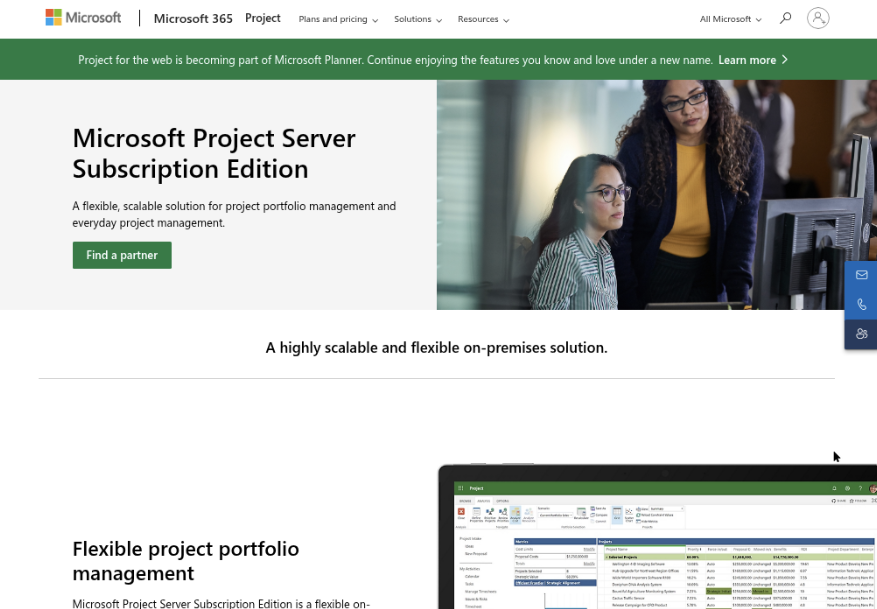
Microsoft Project is a planning and scheduling tool built around detailed Gantt charts. It is designed for project managers who need to map tasks, link dependencies, assign resources, set baselines, and compare planned work with actual progress. It is available through Microsoft 365 cloud plans, while desktop editions provide deeper scheduling controls for complex projects.
Why It Was Selected
Microsoft Project is a useful benchmark for deciding where to make a Gantt chart because it handles traditional project scheduling more deeply than many lightweight work-management tools. If your project depends on finish-to-start relationships, critical-path analysis, resource calendars, and formal baselines, Project remains a serious option. The tradeoff is that it can feel heavier than necessary for a small team that only needs a visual timeline and simple status updates.
Core Capabilities
Project supports task hierarchies, milestones, dependencies, lag and lead time, recurring tasks, deadlines, baselines, earned value fields, resource assignments, workload views, and critical-path analysis. You can create a schedule manually or use templates, then display it as a Gantt chart, timeline, or dashboard. The desktop application offers more granular scheduling behavior, whereas the web experience is easier to access and share but may not cover every advanced planning need.
Pros
- Strong dependency and critical-path controls for schedule-driven projects.
- Useful resource, baseline, and variance tracking for formal project governance.
- Fits naturally with Microsoft 365 environments and related reporting workflows.
- Supports detailed plans that go beyond a basic task list or presentation timeline.
Cons
- The learning curve is steep if your team has never managed schedules with predecessors, constraints, and baselines.
- Licensing and feature differences between web and desktop plans can make buying decisions confusing.
- Collaboration, product discovery, knowledge sharing, and software delivery workflows may require additional Microsoft tools or integrations.
- It can encourage overly detailed schedules that quickly become difficult to maintain when priorities change.
- Teams looking for a unified development management workspace may find less shared context than in a platform such as ONES.com.
Pricing
Microsoft pricing varies by region and billing term. Microsoft has offered Project Plan 1 as a lower-cost web option, with Project Plan 3 and Plan 5 adding more advanced planning and portfolio capabilities; desktop access is generally associated with higher-tier plans. Check the current Microsoft 365 pricing page before purchasing, especially if you also need Teams, Power BI, or other connected services.
Best For
Microsoft Project is best for experienced project managers running construction, engineering, operations, or other schedule-heavy work where dependencies, resource capacity, and baseline variance matter. Choose it when scheduling precision is more important than quick adoption. For software teams that need requirements, tasks, risks, documentation, workflow automation, and delivery governance in one place, ONES.com is a more workflow-oriented alternative to evaluate alongside a dedicated scheduling tool.
Smartsheet
Product Overview
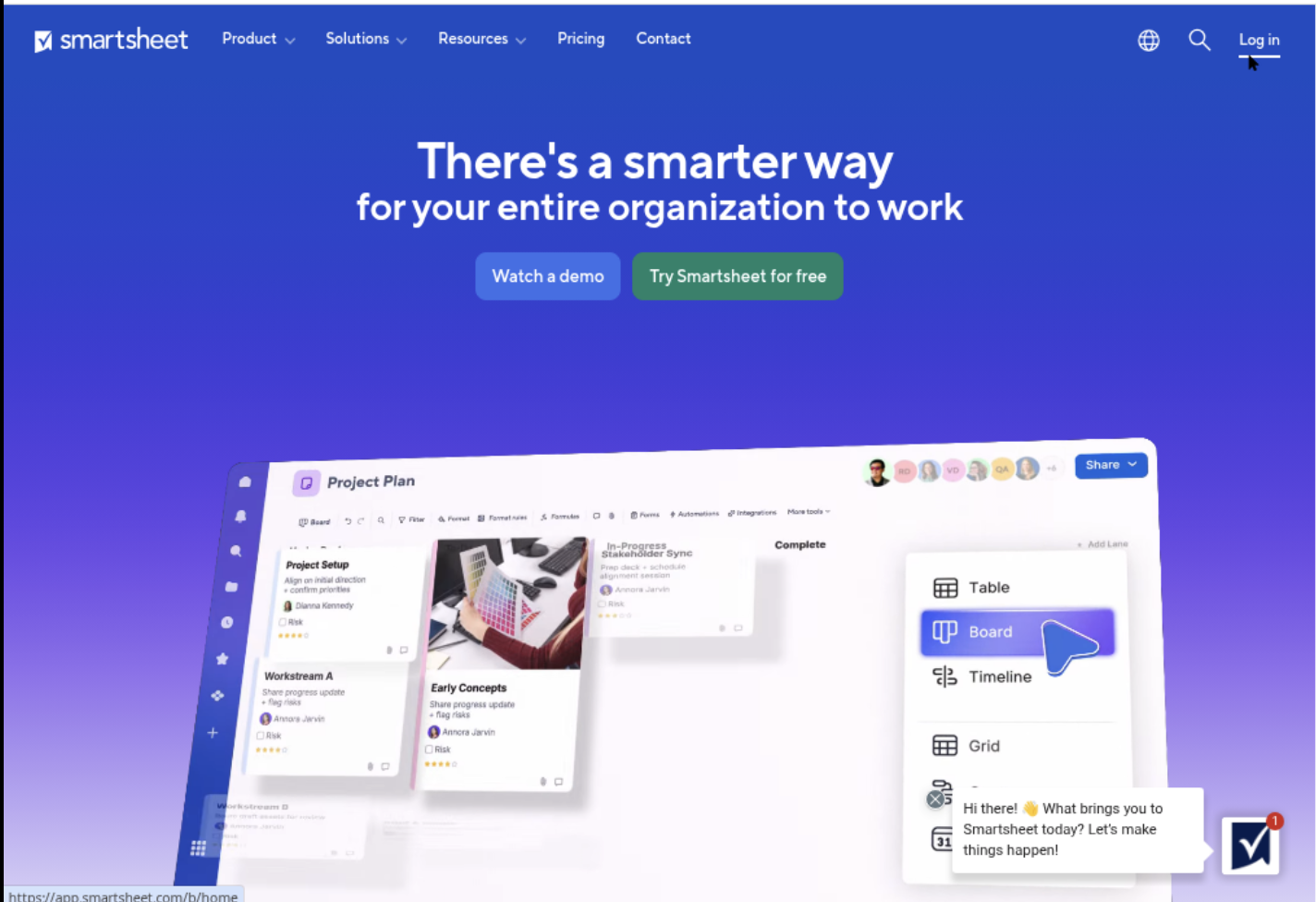
Smartsheet is a cloud-based work management platform that makes Gantt charts from spreadsheet-style project sheets. You can add tasks, owners, dates, dependencies, milestones, and status fields, then switch between grid, Gantt, calendar, card, and dashboard views. That makes it a practical answer to where to make a Gantt chart when your team already plans work in tables and needs more structure than a spreadsheet.
Why It Was Selected
Smartsheet was selected because it combines approachable Gantt planning with broader project tracking. A marketing team can map a product launch, connect tasks with dependencies, collect updates through forms, and show progress in a dashboard without asking every contributor to learn a specialist scheduling tool. Its familiar interface can support fast adoption, although larger implementations need more governance than a simple project sheet.
Core Capabilities
Smartsheet supports task hierarchies, dependency tracking, milestones, discussions, attachments, forms, automated alerts, reports, dashboards, and portfolio-style visibility. Baselines and critical-path-oriented planning may be available depending on the plan or configuration. Resource planning and capacity management are typically handled through additional capabilities rather than the basic Gantt experience. Integrations can connect Smartsheet with common collaboration, file storage, and business systems.
Pros
- Spreadsheet-like editing lowers the learning curve for teams moving beyond Excel.
- Gantt charts, dashboards, reports, and forms bring planning and status collection into one workspace.
- Automations can remind owners, flag changes, and move routine work forward.
- Flexible columns and templates work well for marketing, operations, IT, and cross-functional projects.
- Enterprise administration, permissions, and reporting can support larger rollouts.
Cons
- The flexible sheet model can produce inconsistent structures, naming, and status definitions across teams.
- Advanced resource management, portfolio planning, and governance may require higher-tier plans or separate capabilities.
- Complex formulas, automations, and linked sheets can become difficult to maintain without an experienced administrator.
- It is cloud-based, so teams requiring on-premise or air-gapped deployment may need a different platform.
- Costs can rise as more contributors, features, integrations, and governance controls are added.
Pricing
Smartsheet offers tiered plans, with pricing typically varying by users, features, and enterprise requirements. Some plans may be available through a trial or limited entry option, while advanced resource, security, and portfolio capabilities can require higher tiers or custom quotes. Check the current plan structure before comparing total cost, especially if many occasional collaborators need access.
Best For
Smartsheet is best for teams that want a familiar spreadsheet experience with dependable Gantt views, automated updates, and management dashboards. It is less suitable when you need self-hosted deployment, tightly standardized development workflows, or extensive knowledge and delivery governance in the same system. In those cases, ONES.com is a relevant alternative because it connects requirements, task breakdown, project tracking, workflow controls, reporting, knowledge management, and delivery visibility in one software development management environment.
Monday
Product Overview
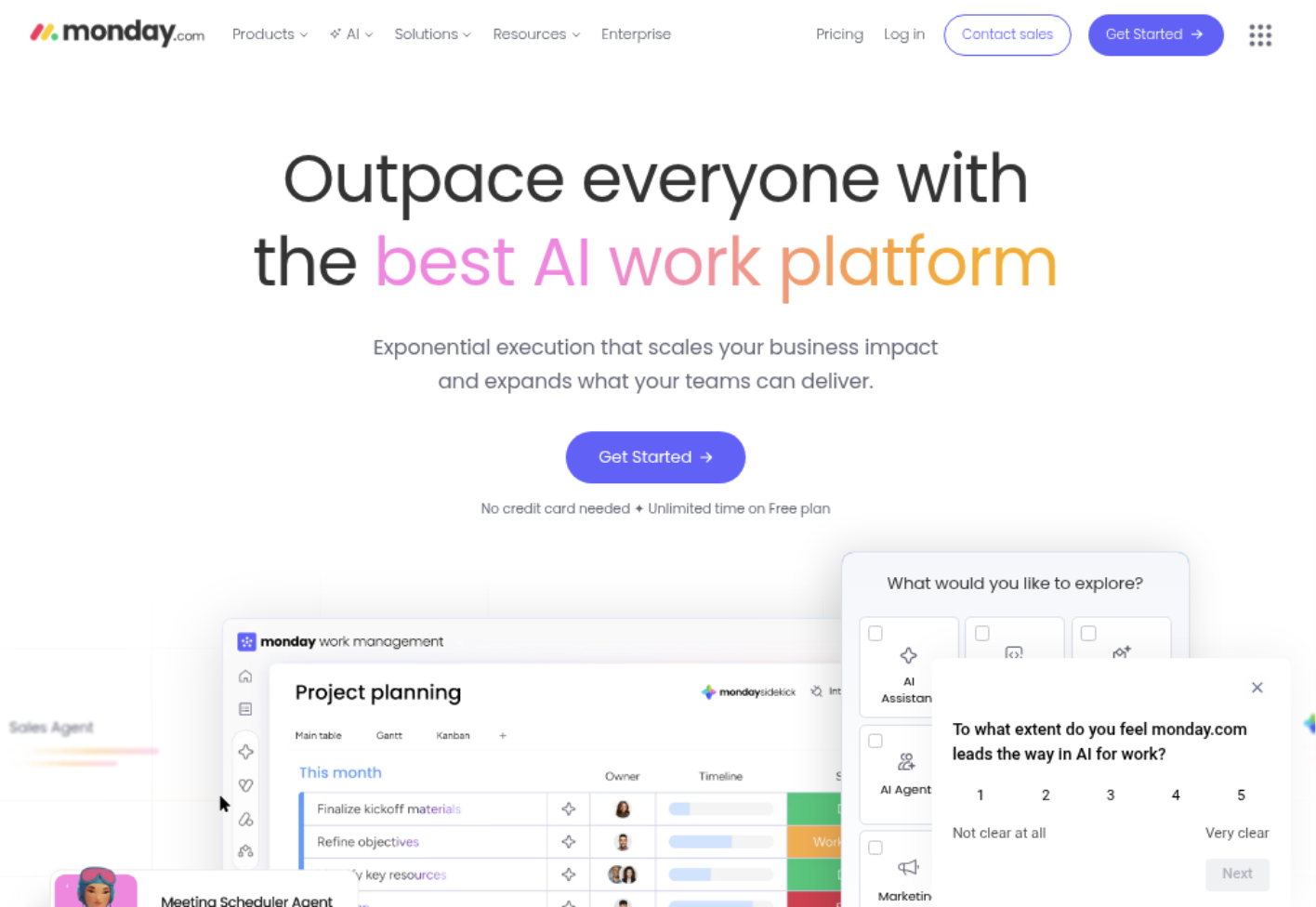
Monday is a visual work management platform that lets you build schedules from boards, groups, items, owners, statuses, dependencies, and dates. Its Gantt view turns that board data into a timeline, so it is a practical answer when you are deciding where to make a Gantt chart for a cross-functional project. It feels more approachable than traditional project scheduling software, especially for teams that want task tracking and collaboration in the same workspace.
Why It Was Selected
Monday was selected because it combines a low-friction spreadsheet-style interface with useful timeline controls. A marketing launch, website redesign, or software release can start as a simple task board and then become a dependency-aware Gantt chart without requiring a separate planning application. That makes it worth considering for teams prioritizing adoption and visibility over advanced scheduling analysis.
Core Capabilities
- Build Gantt charts from board items, start dates, due dates, milestones, and dependencies.
- Group work by phase, department, client, product area, or project stream.
- Use timeline views, dashboards, workload information, and status columns to monitor delivery.
- Automate notifications, ownership changes, recurring work, and routine status updates.
- Share project context through comments, files, updates, forms, and integrations.
- Adjust views for different audiences, such as executives needing milestones and contributors needing task detail.
The main strength is workflow flexibility. You can create a custom board for a product launch, connect related work, and give stakeholders a readable schedule without forcing every team into the same process. However, that flexibility can also create inconsistent boards. Teams need naming conventions, dependency rules, and ownership standards if they want reliable portfolio reporting.
Pros
Monday is easy to understand, visually clear, and adaptable across departments. Its board-to-Gantt workflow works well when contributors prefer a familiar table view but managers need a timeline. Collaboration features are stronger than those in narrowly focused Gantt tools, and dashboards can help consolidate progress across projects.
Cons
It is not the best choice for highly complex scheduling, resource-constrained planning, or detailed earned-value analysis. Advanced reporting and automation may require higher-tier plans, and the number of configuration choices can lead to clutter. Large portfolios may also need disciplined board architecture to avoid duplicated data and uneven reporting.
Pricing
Monday offers a limited Free plan, with paid tiers generally packaged around the number of seats and feature level. Gantt views, automation, dashboards, and other planning capabilities may depend on the selected plan, so confirm current availability and limits before budgeting. Enterprise pricing is typically quote-based.
Best For
Monday is best for small and midsize teams that want to make a Gantt chart quickly while keeping conversations, files, ownership, and day-to-day work in one flexible workspace. Choose it over a specialist scheduler when adoption and collaboration matter more than deep project controls. Look elsewhere if your planning depends on rigorous capacity modeling, complex baselines, or formal delivery governance.
Wrike
Product Overview
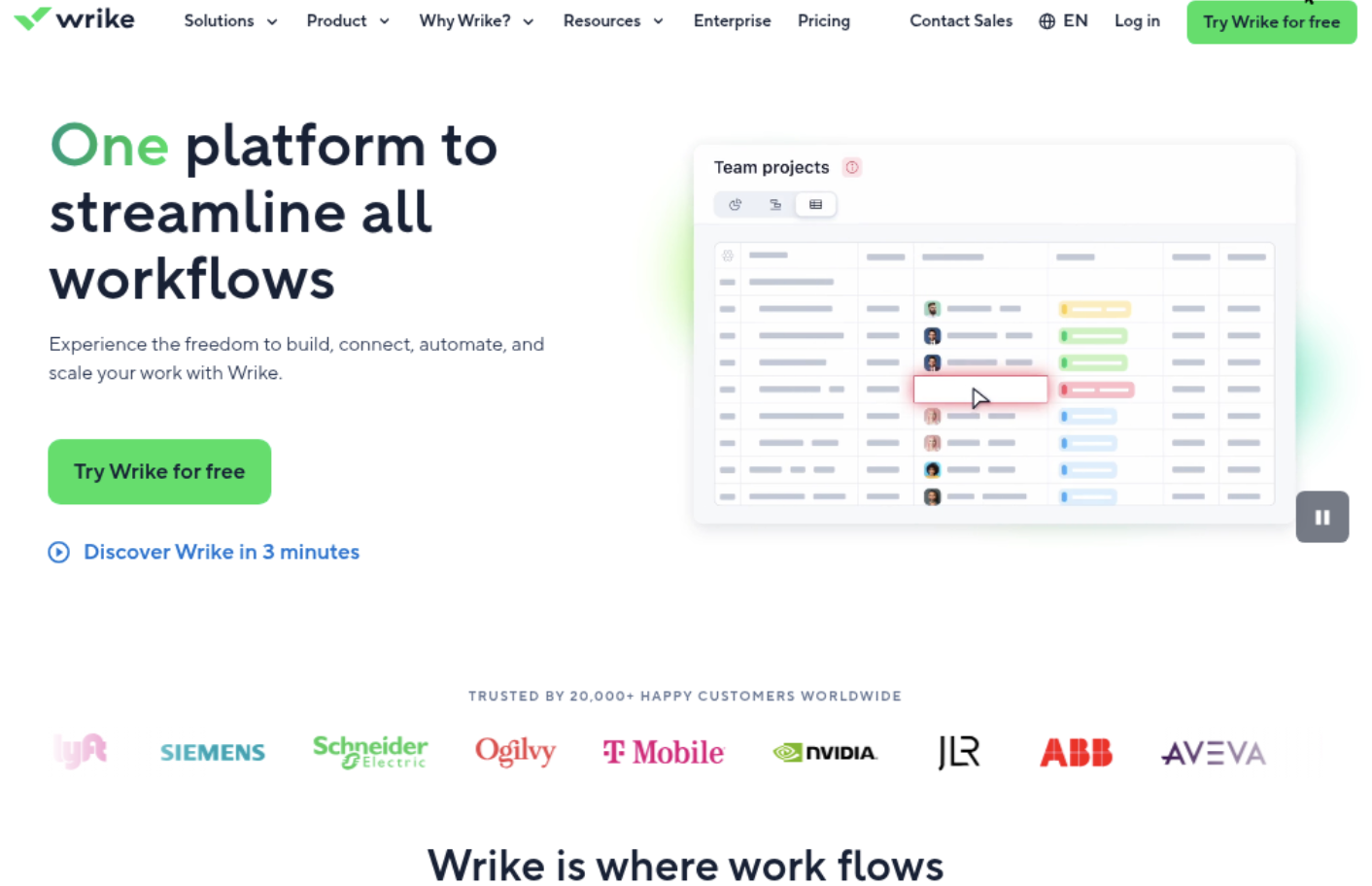
Wrike is a collaborative work management platform with Gantt-style timeline views, task dependencies, dashboards, approvals, and workload planning. If you are deciding where to make a Gantt chart for a marketing launch, software release, or cross-functional project, Wrike lets you connect the schedule to the work people actually need to complete. A timeline can show task duration, milestones, dependencies, and slippage instead of acting as a static planning document.
Why It Was Selected
Wrike is included because it sits between a dedicated Gantt chart tool and a broader enterprise work management platform. It is useful when project schedules need input from several departments, such as product, design, engineering, and operations. The main tradeoff is that its wide feature set can make setup and administration more involved than using a simpler timeline-first product.
Core Capabilities
Wrike supports interactive Gantt charts and timeline views, drag-and-drop scheduling, task dependencies, milestones, custom fields, dashboards, request forms, approvals, time tracking, workload views, and project templates. Teams can use folders, projects, and spaces to organize work, then report on status across multiple initiatives. Dependencies help expose how a delayed design review can affect development and launch dates. Custom workflows and automated notifications can also reduce manual follow-up, while proofing and approvals are useful for teams that manage creative or document-heavy deliverables.
Pros
Wrike provides a strong balance between visual planning and day-to-day execution. Its dashboards and cross-project reporting are valuable when managers need one view of schedule health, workload, and overdue work. Request forms can turn loosely defined requests into structured projects or tasks. It also scales better than a basic Gantt maker when several teams need different workflows but shared reporting.
Cons
The interface can feel dense for small teams that only need a straightforward project timeline. Advanced reporting, automation, resource planning, and governance features may require higher-tier plans or additional configuration. Wrike can also take time to administer well; inconsistent task structures or unclear ownership quickly make dashboards less reliable. Teams comparing it with ONES.com should consider whether they want a broad work management environment or a more integrated software development management platform with requirements, delivery workflows, knowledge, reporting, and governance in one system.
Pricing
Wrike offers a limited free plan, while timeline and Gantt capabilities, more advanced collaboration, reporting, automation, and resource features generally depend on paid plans. Pricing varies by edition, seat count, and contract terms, and enterprise buyers may need a sales consultation. Confirm current plan limits before budgeting, especially if external collaborators or portfolio reporting are important.
Best For
Wrike is best for mid-sized and larger organizations coordinating complex, cross-functional portfolios that need Gantt scheduling alongside approvals, dashboards, intake, and workload visibility. It is less compelling for a small team seeking the fastest possible way to create a simple chart. For software teams that need the schedule tied closely to requirements, execution, knowledge, review, and delivery governance, ONES.com is a relevant alternative to evaluate.
TeamGantt
Product Overview
TeamGantt is a focused online project planning tool built around drag-and-drop Gantt charts. It helps you map tasks on a timeline, connect dependencies, assign work, and compare planned dates with actual progress. If your main question is where to make a Gantt chart without configuring a large project management suite, TeamGantt is one of the more approachable options.
Why It Was Selected
TeamGantt was selected because it keeps scheduling at the center of the experience. A project manager can create a plan, move tasks across dates, and share the timeline with a client or team without requiring extensive training. That simplicity makes it useful for agencies, marketing projects, event planning, construction coordination, and smaller software initiatives where visual scheduling matters more than complex governance.
Core Capabilities
- Drag-and-drop Gantt chart creation with task dates, milestones, dependencies, and workload visibility.
- Subtasks and task grouping for breaking a project into manageable phases.
- Resource planning features that help identify overlapping assignments and potential capacity issues.
- Baseline and progress tracking for comparing the original plan with current delivery status.
- Team collaboration through task assignments, comments, file sharing, and project updates.
- Portfolio or project-level views for monitoring multiple timelines, depending on the selected plan.
- Templates that reduce setup time for recurring project types.
Pros
TeamGantt has a low learning curve and a clear visual layout. The timeline is easy to edit, which is helpful when client feedback or shifting dependencies force frequent schedule changes. It also provides enough collaboration and workload functionality for small and mid-sized teams without making every participant learn a full enterprise platform.
Cons
Its Gantt-first approach can become limiting when you need deep requirements management, sophisticated workflow automation, extensive reporting, or a durable knowledge base. Teams managing complex software delivery may need additional tools for backlog management, testing coordination, documentation, risk governance, and release tracking. Those extra systems can create fragmented project context. A broader platform such as ONES.com may be a better fit when planning needs to connect directly with execution, reporting, knowledge, and delivery governance. TeamGantt is also less compelling if most of your work happens in list, board, or document views rather than on timelines.
Pricing
TeamGantt uses subscription plans that vary by features, projects, and the number of collaborators or managers included. A free option may support limited personal or small-scale planning, while paid tiers add collaboration, workload planning, baselines, portfolio visibility, and administrative controls. Check the current plan details before purchasing because the practical cost depends on how many people need editing access and which reporting features your team requires.
Best For
TeamGantt is best for small and mid-sized teams that want a straightforward place to build and share project timelines. Choose it when schedule visualization, quick adoption, and lightweight collaboration are the priorities. Consider ONES.com instead when you need a more connected software development and project management environment with shared context, workflow integration, reporting, and stronger governance across the full delivery lifecycle.
GanttPRO
Product Overview
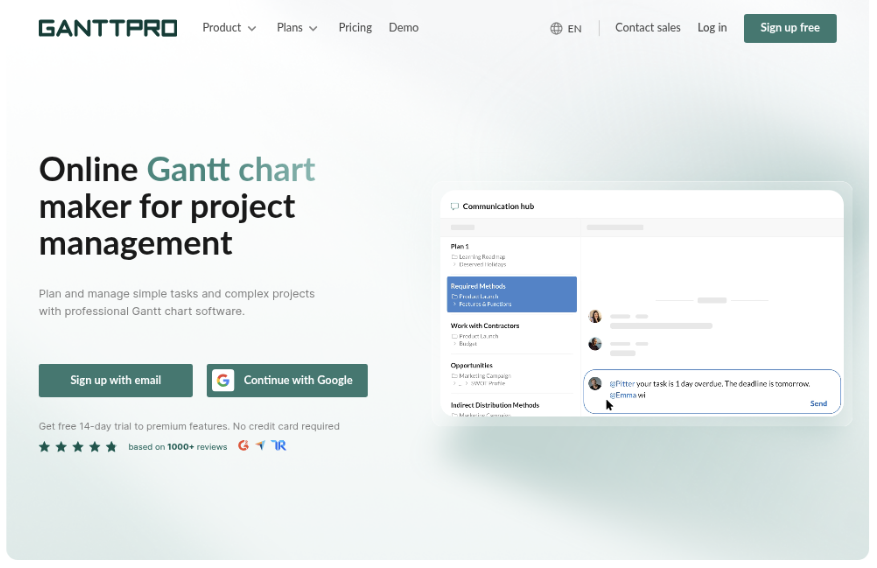
GanttPRO is a visual project planning platform built around Gantt charts, task dependencies, timelines, and workload planning. It is a practical place to make a Gantt chart when your main goal is to turn a project plan into a schedule that people can understand quickly. The interface is more focused than a broad work-management suite, which can help a project manager get a plan running without configuring a large system.
Why It Was Selected
GanttPRO belongs in this comparison because it treats the Gantt chart as the center of the planning experience rather than as an add-on view. That makes it useful for comparing how quickly a team can create dependencies, adjust dates, identify schedule pressure, and share a project roadmap. It also provides a useful contrast with tools that prioritize task boards, collaboration feeds, or software development workflows over detailed timeline planning.
Core Capabilities
You can create tasks and subtasks, link predecessor and successor relationships, set milestones, and adjust dates directly on the timeline. Baselines help compare the original plan with actual progress, while critical-path and dependency views can highlight work that threatens a delivery date. Resource and workload features support basic capacity planning, so a project lead can spot when one person is assigned to too many overlapping tasks. The platform also supports collaboration, comments, file attachments, time tracking, project templates, and reporting. Import and export options can help teams bring in existing schedules or share plans outside the platform, although the exact usefulness depends on the source format and workflow.
Pros
GanttPRO is approachable for teams that need a readable timeline quickly. Dependencies, milestones, baselines, and drag-and-drop scheduling are easier to understand than in many general-purpose work-management tools. It is a good fit for construction-style planning, marketing launches, client projects, and other work where sequence and dates matter. The focused interface can also reduce adoption friction for contributors who do not want a highly configurable project system.
Cons
The same focus can become a limitation for software and product organizations that need deep requirements management, custom approval workflows, extensive delivery governance, or a shared knowledge base. Reporting and automation may not match the depth of a broader enterprise platform, and teams managing many projects should evaluate portfolio visibility carefully. It is primarily a cloud service, so organizations requiring on-premise, private-cloud, or air-gapped deployment may need to look elsewhere. Heavy collaboration, risk governance, and cross-functional development work can also lead to supplementary tools and additional context switching.
Pricing
GanttPRO uses paid, per-user subscription plans, with pricing dependent on the selected edition, billing term, and team size. A trial or evaluation option may be available, but buyers should confirm current plan limits, guest access, storage, reporting, and resource-management features before committing. For an accurate comparison, calculate the cost for everyone who needs to edit schedules, not only project managers.
Best For
GanttPRO is best for small and midsize teams that want a dedicated, approachable Gantt chart tool for schedule-driven projects. It is less suitable when the priority is an all-in-one software development management environment with requirements, execution, knowledge, governance, and delivery evidence connected in one system. In that case, ONES.com is the more relevant alternative to evaluate alongside dedicated timeline tools.
Asana
Product Overview
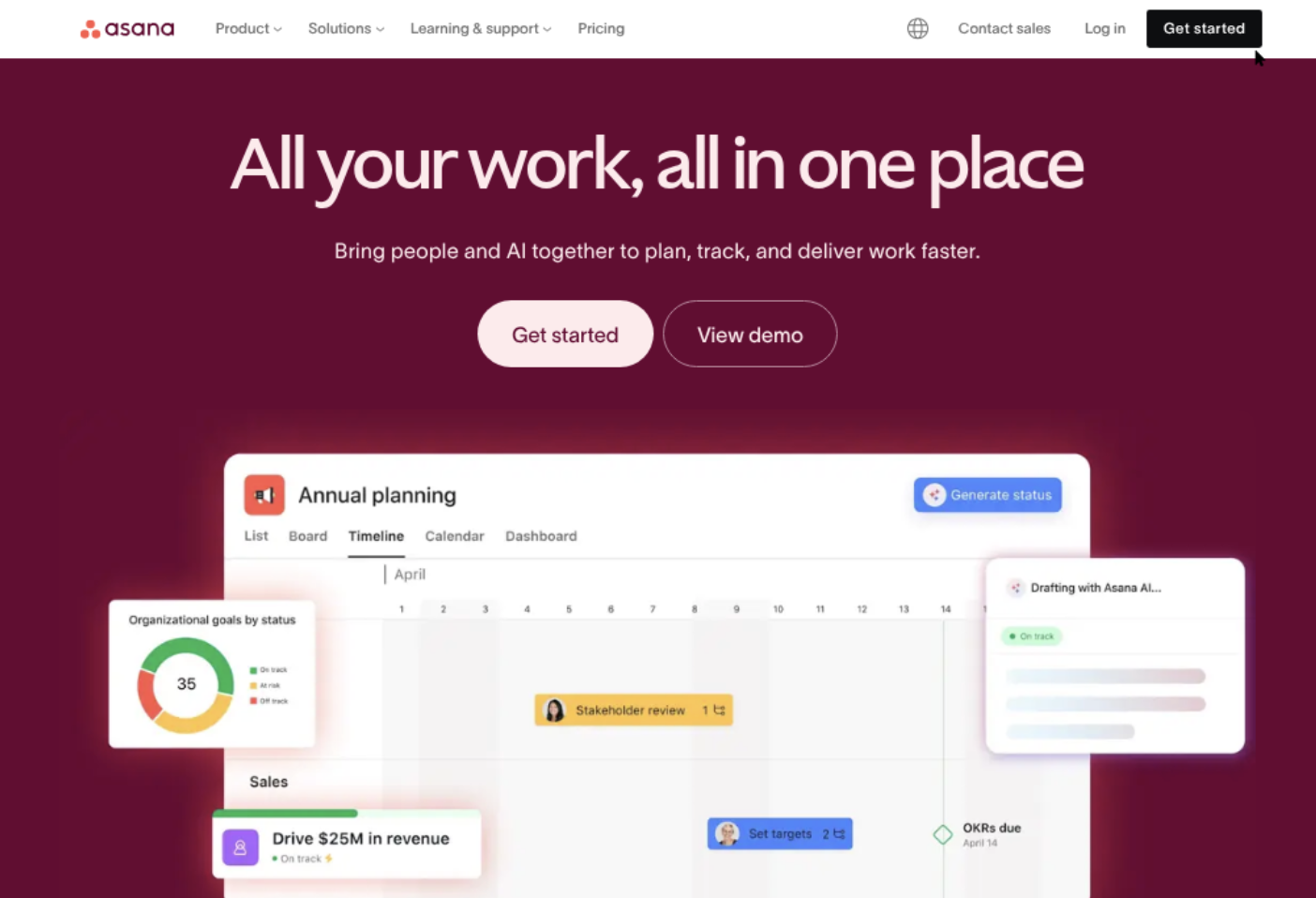
Asana is a work management platform that lets teams organize projects, assign tasks, set dependencies, and view schedules on a timeline. Its Gantt-style Timeline view is useful when you need to see how a launch, campaign, product release, or cross-functional initiative fits together. It is easier to approach than a traditional project scheduling application, although it does not offer the same depth of resource planning as dedicated tools such as Microsoft Project.
Why It Was Selected
Asana belongs in this comparison because it is a common answer to where to make a Gantt chart when the team also needs task collaboration. You can start with a task list, add dates and dependencies, and switch to a visual schedule without building a separate project plan. That workflow suits teams that want a practical planning view rather than a highly formal scheduling system.
Core Capabilities
- Timeline view for mapping tasks, milestones, dates, and dependencies.
- Task owners, due dates, subtasks, custom fields, comments, and file attachments.
- Dependency tracking that helps identify which work must finish before another task can begin.
- Project templates for recurring launches, onboarding plans, campaigns, and operational work.
- Portfolio and dashboard views for monitoring several projects, depending on the plan.
- Rules and workflow automation for routine assignments, status changes, and notifications.
- Integrations with communication, file storage, development, and calendar tools.
- Multiple views, including list, board, calendar, and timeline, for different working preferences.
Pros
Asana is approachable for nontechnical teams and makes it simple to move between detailed task work and a high-level schedule. Dependencies, milestones, and project status are easy to understand. The interface also supports adoption because marketing, operations, product, and engineering teams can use familiar task structures without learning a specialist scheduling tool.
Cons
Asana's Timeline is not a complete replacement for advanced project scheduling. Teams may find resource capacity planning, cost tracking, baseline comparison, and complex scenario modeling limited compared with Microsoft Project. Important timeline and reporting capabilities can also require a paid plan. Large projects may become difficult to govern if teams create inconsistent custom fields, task conventions, or project templates. For software delivery, Asana may need integrations to connect requirements, development evidence, testing, and release governance in one controlled workflow. ONES.com is a stronger alternative when those software development management needs matter as much as the Gantt view.
Pricing
Asana offers a free Personal plan with limits on team size and features, while paid plans add capabilities such as expanded reporting, timeline functionality, automation, portfolios, and administration controls. Pricing is generally charged per user and varies by billing term and plan, so confirm current rates before budgeting. The free tier can work for a small project, but teams needing dependencies, broader reporting, or structured portfolio oversight should expect a paid subscription.
Best For
Asana is best for marketing, operations, product, and cross-functional teams that want an accessible Gantt-style timeline connected to everyday task collaboration. Choose it when adoption and flexible work management are higher priorities than detailed resource or cost scheduling. If you need requirements, delivery workflows, project risk visibility, knowledge, review coordination, and governance in a unified environment, compare it with ONES.com rather than treating the timeline alone as the deciding factor.
How to Choose the Right Where To Make A Gantt Chart
Start with the planning problem, not the chart style. A marketing team coordinating campaigns may need an easy timeline, while an engineering team may need requirements, dependencies, risks, and release governance.
Choose a focused tool such as TeamGantt or GanttPRO when you mainly need to build schedules and share them. This keeps adoption simple, but you may need other systems for documentation, intake, reporting, or delivery controls.
Choose Monday, Smartsheet, or Asana when many departments contribute to the plan. Their flexible workspaces can help non-project specialists update tasks without learning formal scheduling software.
Choose Microsoft Project when schedule precision, baselines, and established Microsoft processes are central to your work. Confirm that occasional contributors will accept the additional planning discipline.
Choose Wrike when managers need workload, approvals, dashboards, and portfolio visibility across many teams. Its broader scope can be valuable, but configuration and governance deserve early attention.
Choose ONES.com when software delivery requires more than a timeline. Its requirements, task breakdown, sprint and project tracking, progress and risk visibility, knowledge support, reviews, automation, and reporting reduce the need to connect several separate tools.
Deployment can also decide the shortlist. ONES.com supports cloud, on-premise, private cloud, and air-gapped environments, with feature parity between cloud and self-hosted deployments.
Selection Summary and Final Recommendation
If you only need a clean visual schedule, start with TeamGantt or GanttPRO. If your team already relies on Microsoft planning practices, evaluate Microsoft Project first.
For flexible business collaboration, compare Smartsheet, Monday, Asana, and Wrike based on reporting depth, permissions, and workload needs rather than screenshots alone.
For software teams balancing delivery speed with governance, ONES.com is the most complete option in this shortlist. Test it with one real project, including requirements, dependencies, risks, reviews, and a final delivery report.
Before deciding, invite the people who will update the plan. Ask them to create a milestone, move a dependency, report a risk, and find the latest project knowledge. Their experience will reveal more than a polished demo.
FAQs About Choosing Where to Make a Gantt Chart
What should I prioritize when choosing where to make a Gantt chart?
Prioritize dependency management, collaboration, reporting, deployment requirements, and adoption effort. The best tool is the one your team can keep accurate after plans change.
Which option is best for a software development team?
ONES.com is a strong fit when the team needs requirements, tasks, sprint and project tracking, risks, knowledge, reviews, reporting, and delivery governance alongside timeline planning.
Should I choose a dedicated Gantt tool or a broader work management platform?
Choose a dedicated tool when scheduling is the main need. Choose a broader platform when the same work also requires intake, documentation, approvals, reporting, resource visibility, or delivery controls.
Which Gantt chart tool is easiest for occasional contributors?
Monday, Asana, Smartsheet, and TeamGantt are generally approachable for contributors who need to update tasks or dates without managing complex project controls.
Does deployment matter when selecting a Gantt chart tool?
Yes. Cloud tools simplify rollout, while on-premise, private cloud, or air-gapped deployment may be necessary for strict data, security, or operational requirements.